May 2025 Updates
AI Design Assistant: Auto-generate AI Conversations
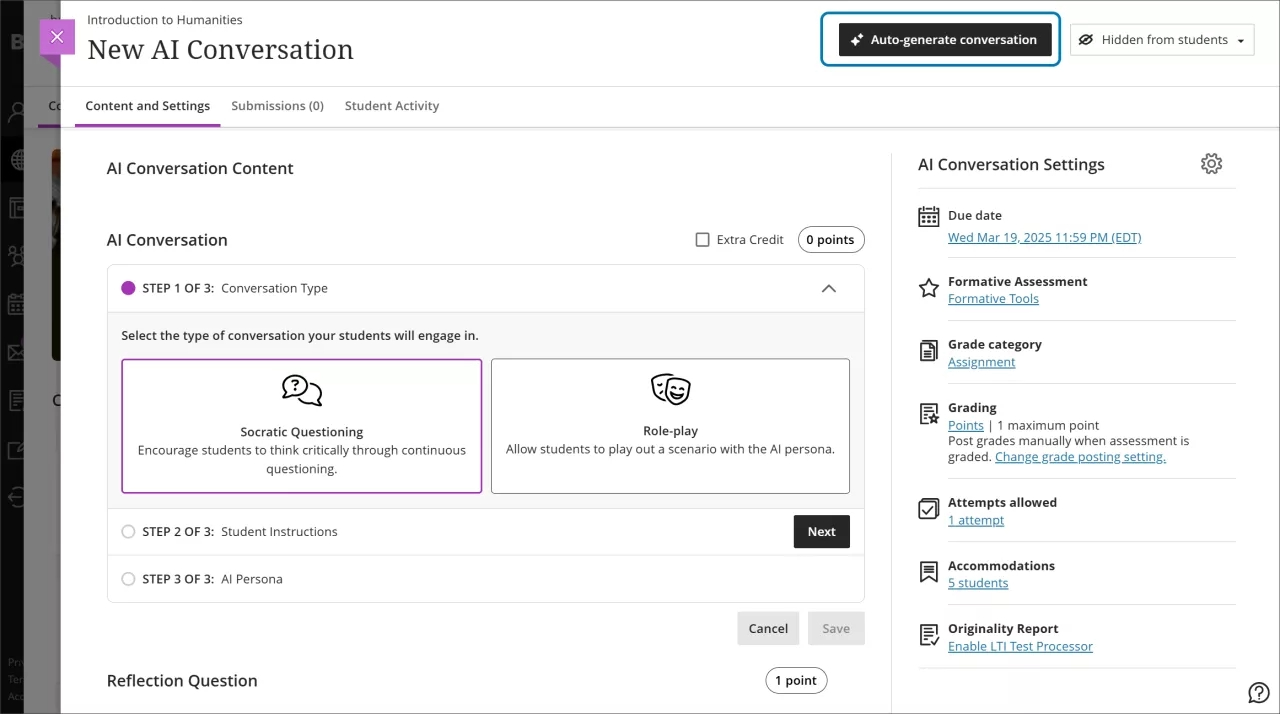
The AI Design Assistant can now auto-generate AI Conversations.
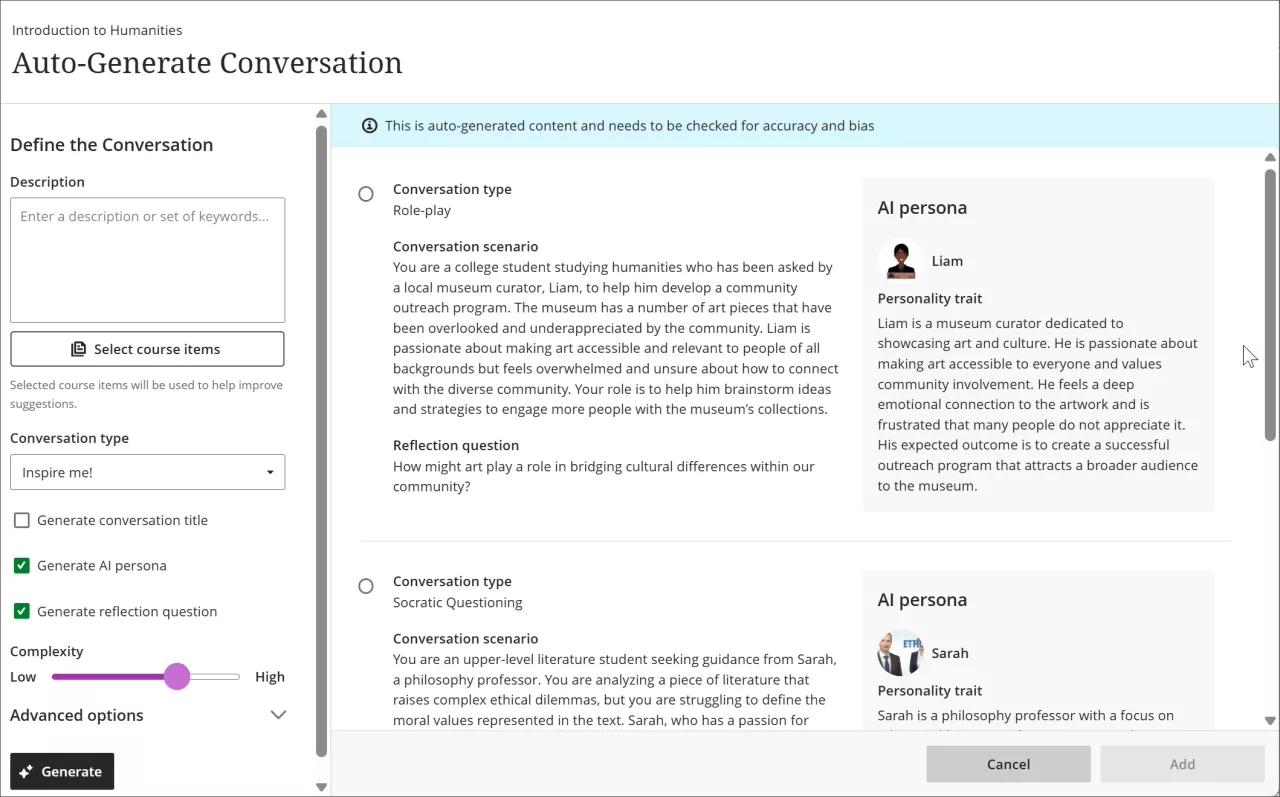
The AI Design Assistant can generate three suggestions at once and you can choose what the Assistant generates. You can choose from:
- AI Conversation title
- AI persona
- Reflection question
Instructors can refine the AI Design Assistant’s suggestions through:
- Providing additional context
- Adjusting the complexity of the question
- Selecting context from the course
- Manually revising the question
Qualitative rubrics with no-points option
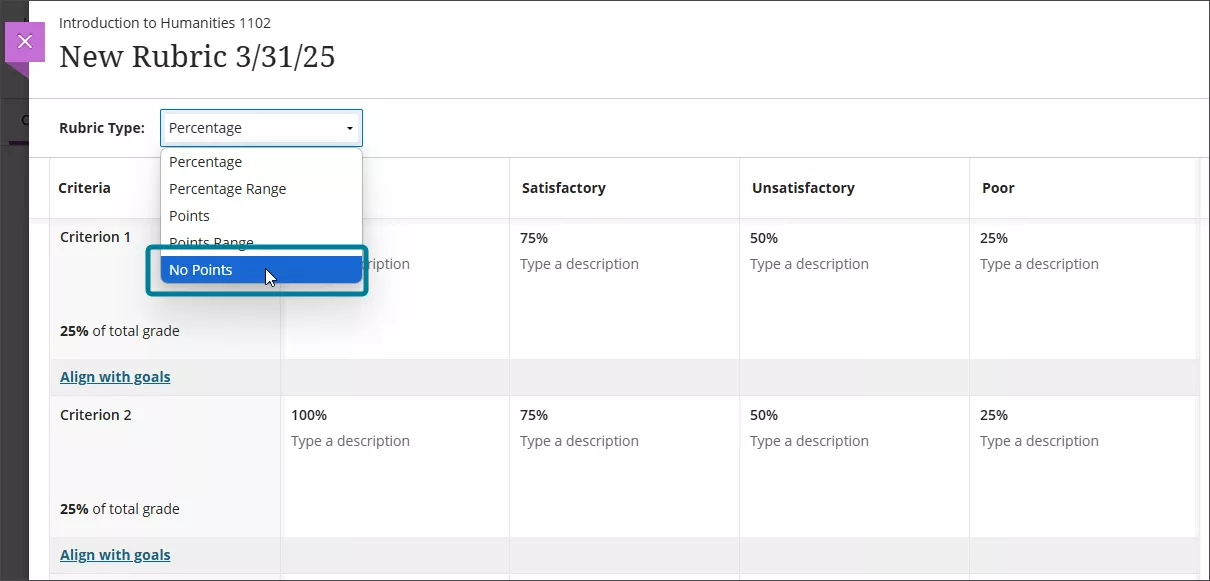
Instructors can now create and use no-points rubrics for qualitative evaluation. This rubric type allows instructors to assess student work based on criteria and feedback, rather than numerical values. In addition, the AI generation option now supports no-points rubrics, providing a streamlined method to create detailed evaluation criteria.
Instructors can select No Points as a rubric type when creating or generating a rubric. This option is available alongside existing percentage and points-based rubrics. Instructors can also edit rubrics to switch between different rubric types, including percentage, points range, and no points.
Gradebook accessibility enhancements
The Gradable Items tab in the Gradebook now features a redesigned interface to improve accessibility and navigation for keyboard-only and screen reader users. With this update, the Gradable Items tab uses a table-based layout to enhance usability:
- Screen reader users can now hear both header and row announcements, allowing for smoother navigation through student submissions.
- Keyboard users can now move efficiently across rows or down columns using arrow keys.
Enhancements to discussions
Several enhancements to discussions have been made:
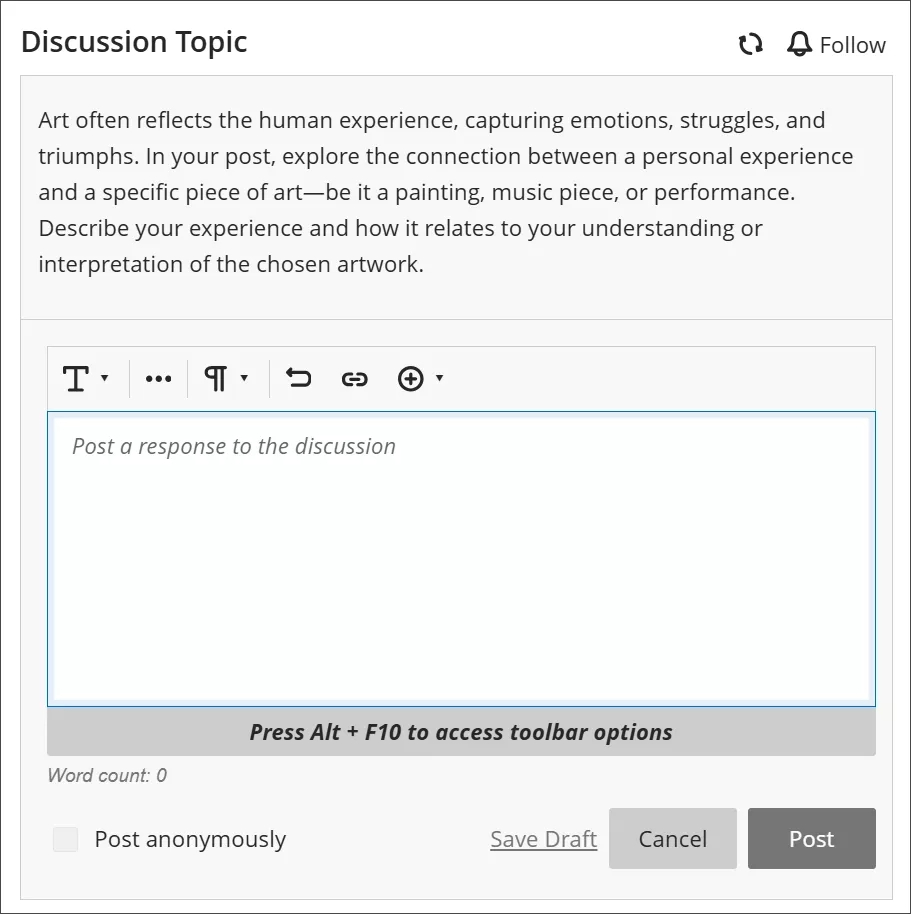
- Improved response field text: The text within the discussion response field now reads, “Post a response to the discussion” instead of “Type a response.”
- Updated wording: Users now select ‘Post’ instead of ‘Respond’ to submit a discussion response.
- Streamlined response entry: The text field for entering a response is now directly below the discussion topic.
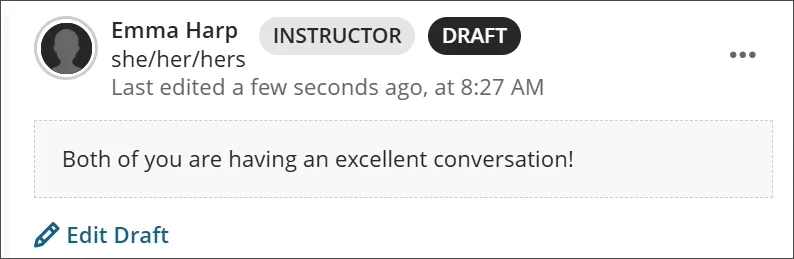
- Instructor indicator: When an instructor posts in a discussion thread, an indicator beside their name now identifies them as an instructor.
- Aligned draft indicator: The Draft indicator is now aligned with the user’s name.
- Enhanced search field: The search field for participant names now includes a magnifying glass icon for better visibility.
- Simplified group discussions: The large banner beneath group discussion posts has been removed. Users can now directly select their group.
“View submission one time” test results setting
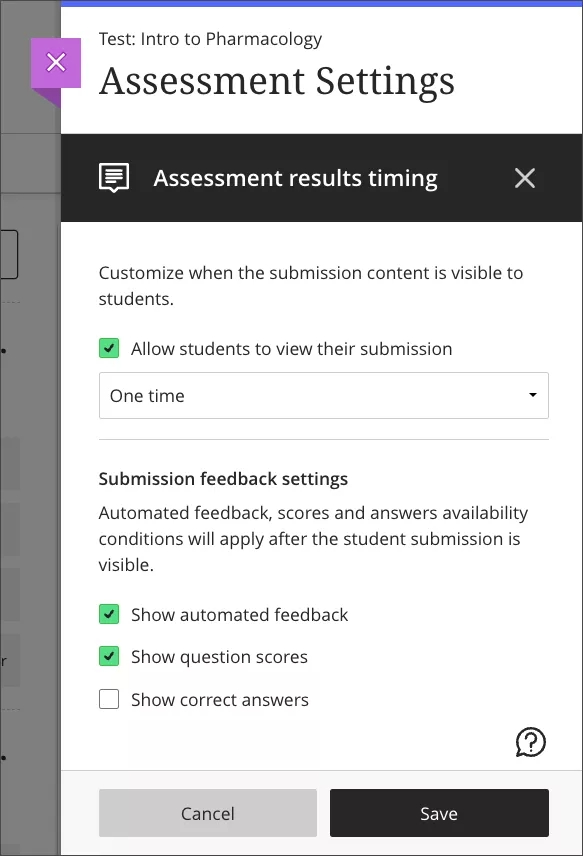
When a student completes the test, they can review their answers and detailed feedback, such as which questions were answered correctly. The View submission one time option lets instructors provide students with immediate feedback, whilst maintaining test security.
For Instructors: To access this option, select ‘Available after submission’ in the ‘Assessment results’ section of the Assessment Settings, then select ‘View submission one time’ from the ‘Customise when the submission content is visible to student’s’ dropdown. This dropdown is available only if ‘Allow students to view their submission’ is selected.
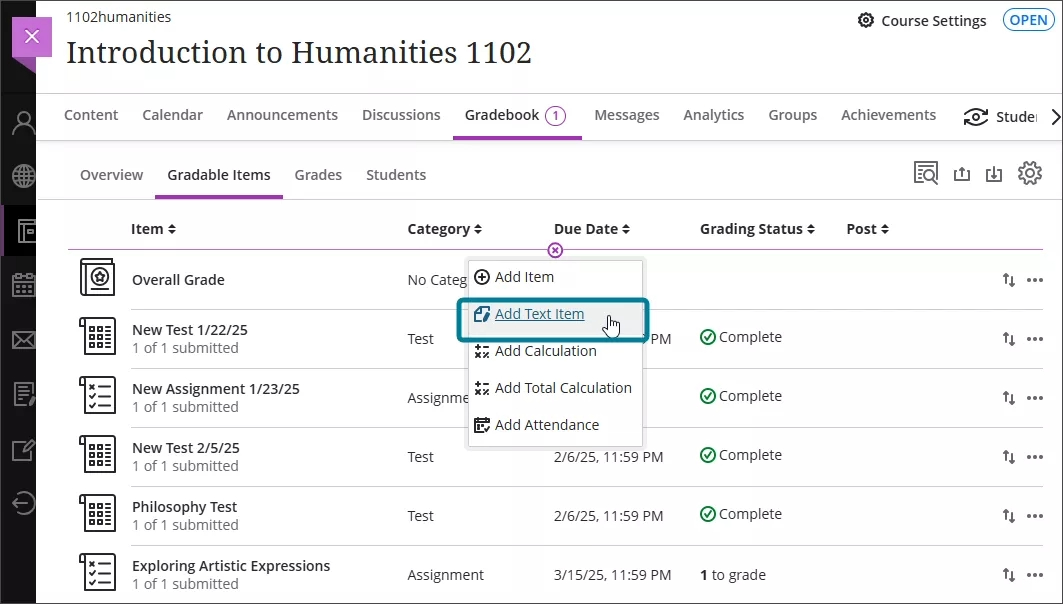
Text-based columns in Gradebook
Instructors can now create custom text-based columns in the Gradebook, giving them the ability to record information for an assessment, such as performance code, group membership, and tutoring information.
Text-based columns in the Gradable Items view are accessible through a properly marked-up table layout. Screen reader users can navigate and hear headers and rows accurately. Sorting and assistive technology features ensure an inclusive experience for all users.
Instructors can now create text-based columns in the Gradebook. These columns allow instructors to record up to 32 characters.
Instructors can:
- Create text-based columns via the Add workflow in both the grid view and Gradable Items page;
- Name the column, control student visibility, and add a description;
- Add and edit text information for a specific student using an inline edit workflow.
Text-based columns exclude the following:
- Points values (automatically set to 0 points)
- Due dates
- Categories
- Gradebook calculations and related calculation UIs
Students can access text-based columns and associated information in their Gradebook when the column is set to Visible to students.