Microsoft Education: Creating a Teams Meeting
Follow the steps below to create a Microsoft Teams meeting within Microsoft Education in Blackboard Ultra.
Before creating a meeting, you will need to enable Microsoft Education on your module. This is a one-time setup process.
Click Books & Tools in the Details & Actions menu.
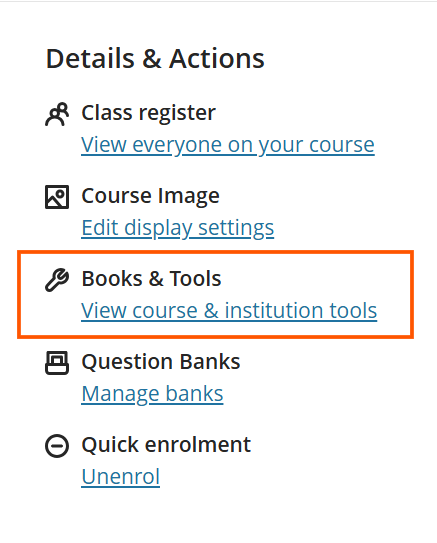
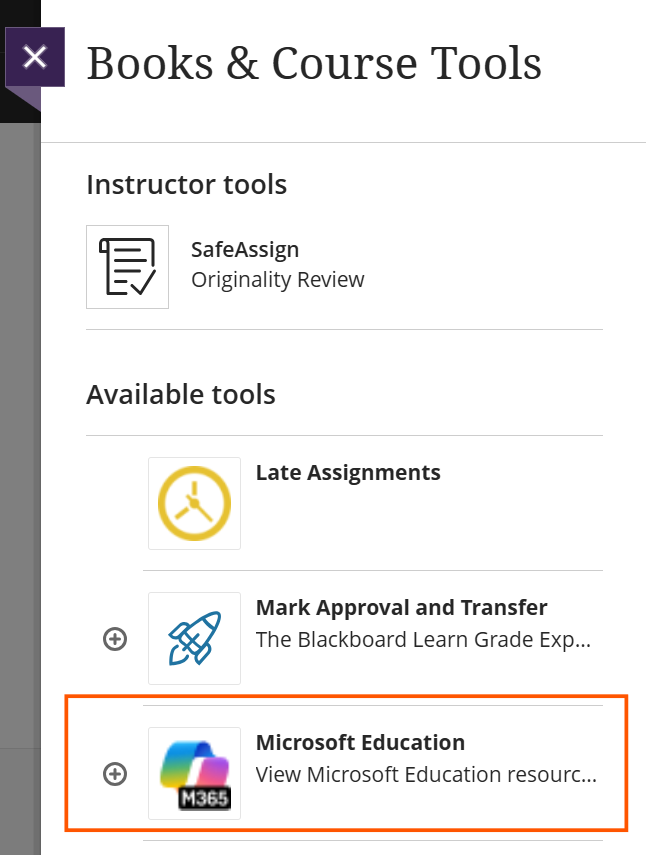
Select Microsoft Education.
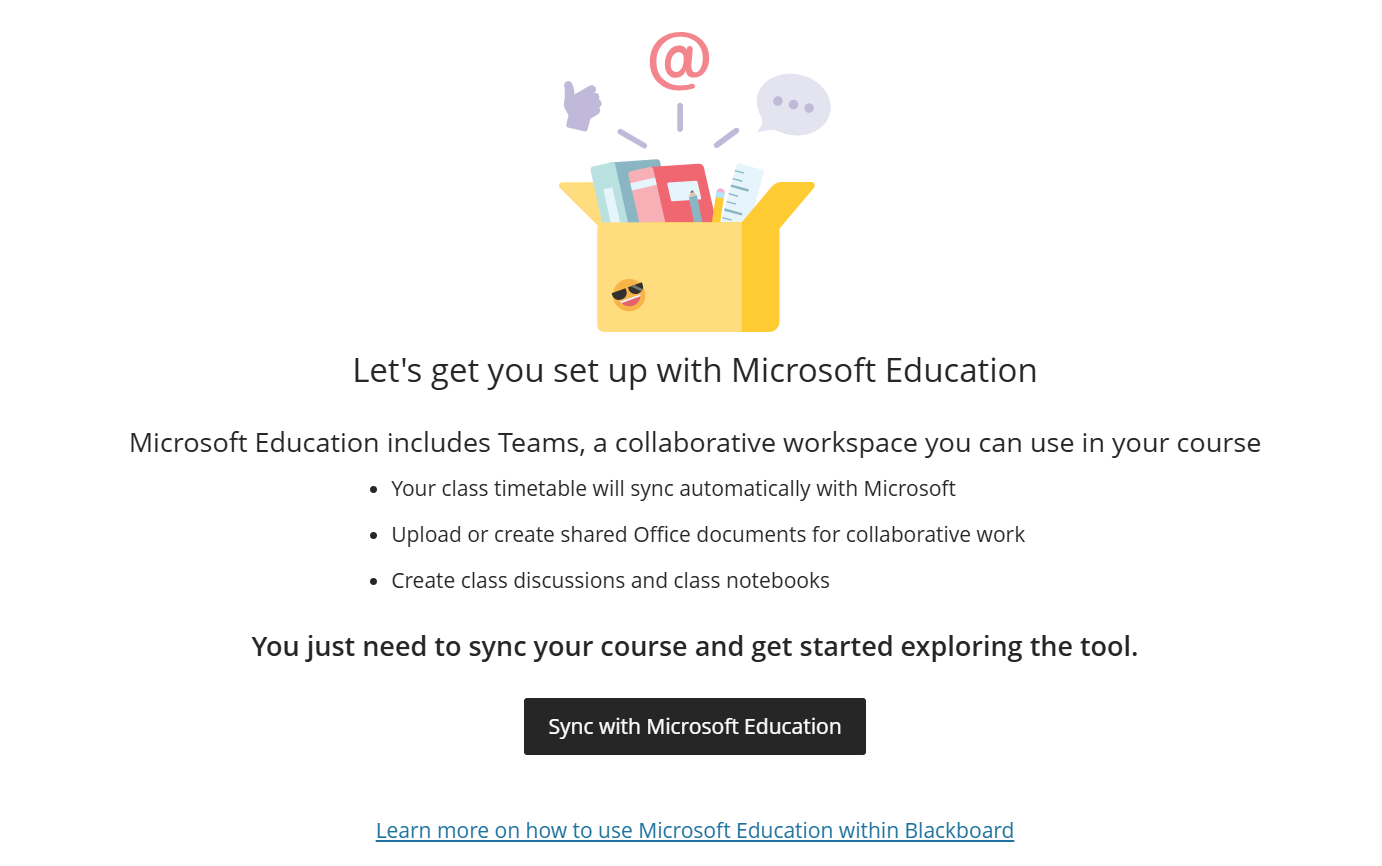
Click Sync with Microsoft Education. If this option is not displayed, you can skip this step and proceed to the next one.
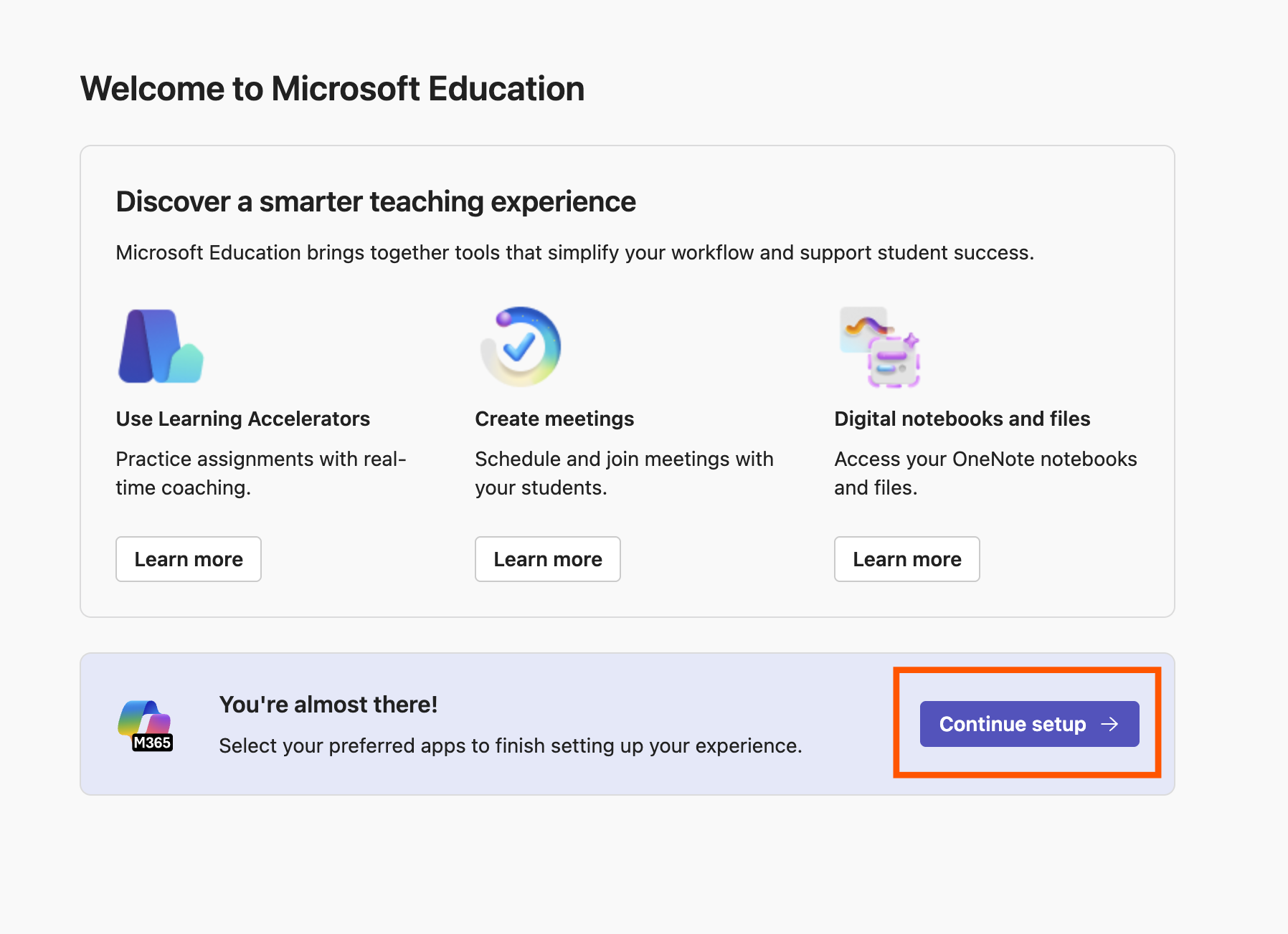
The Microsoft Education interface open in Blackboard Ultra with the Sync with Microsoft Education button. You will be presented with the Welcome to Microsoft Education screen. Click the Continue Setup button to proceed.
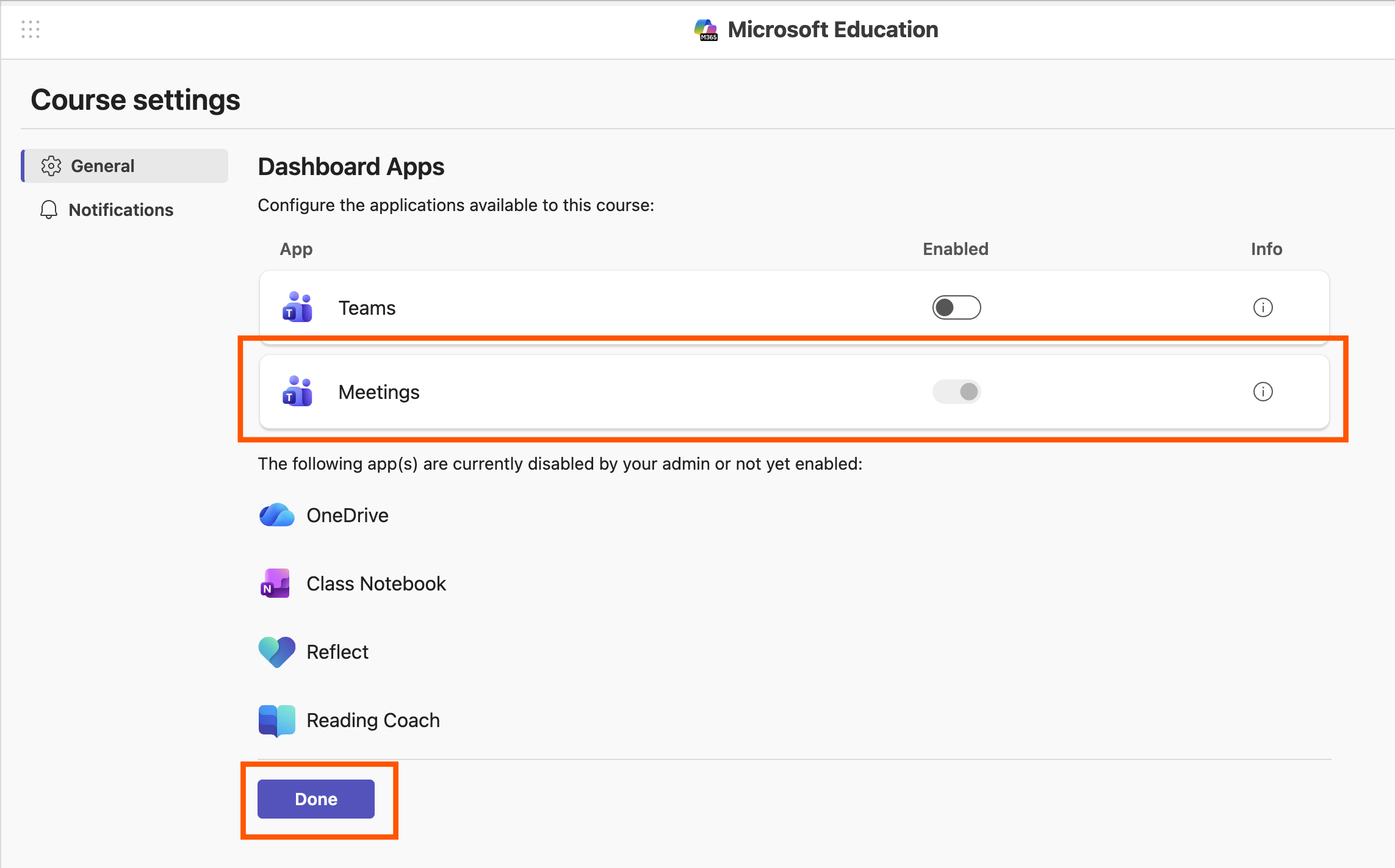
The Teams Meetings toggle is enabled by default. Click Done to finish the setup process.
Select Meetings from the Microsoft Education navigation menu.
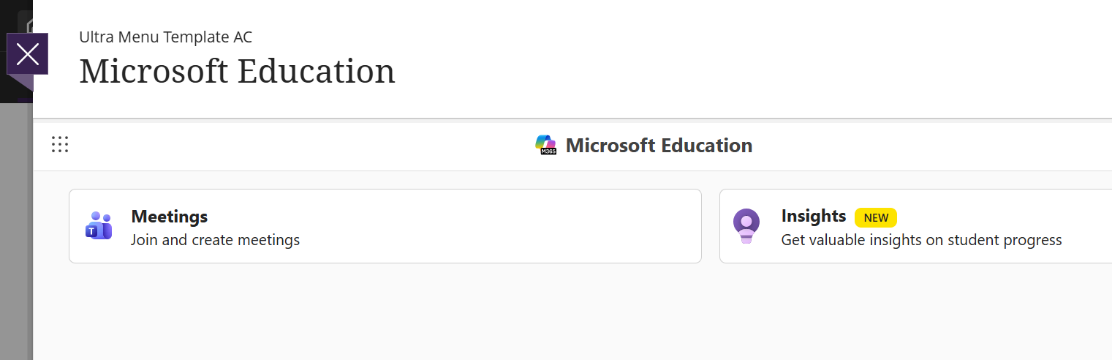
Microsoft Education interface showing the Meetings navigation option. Select the New Meeting button.
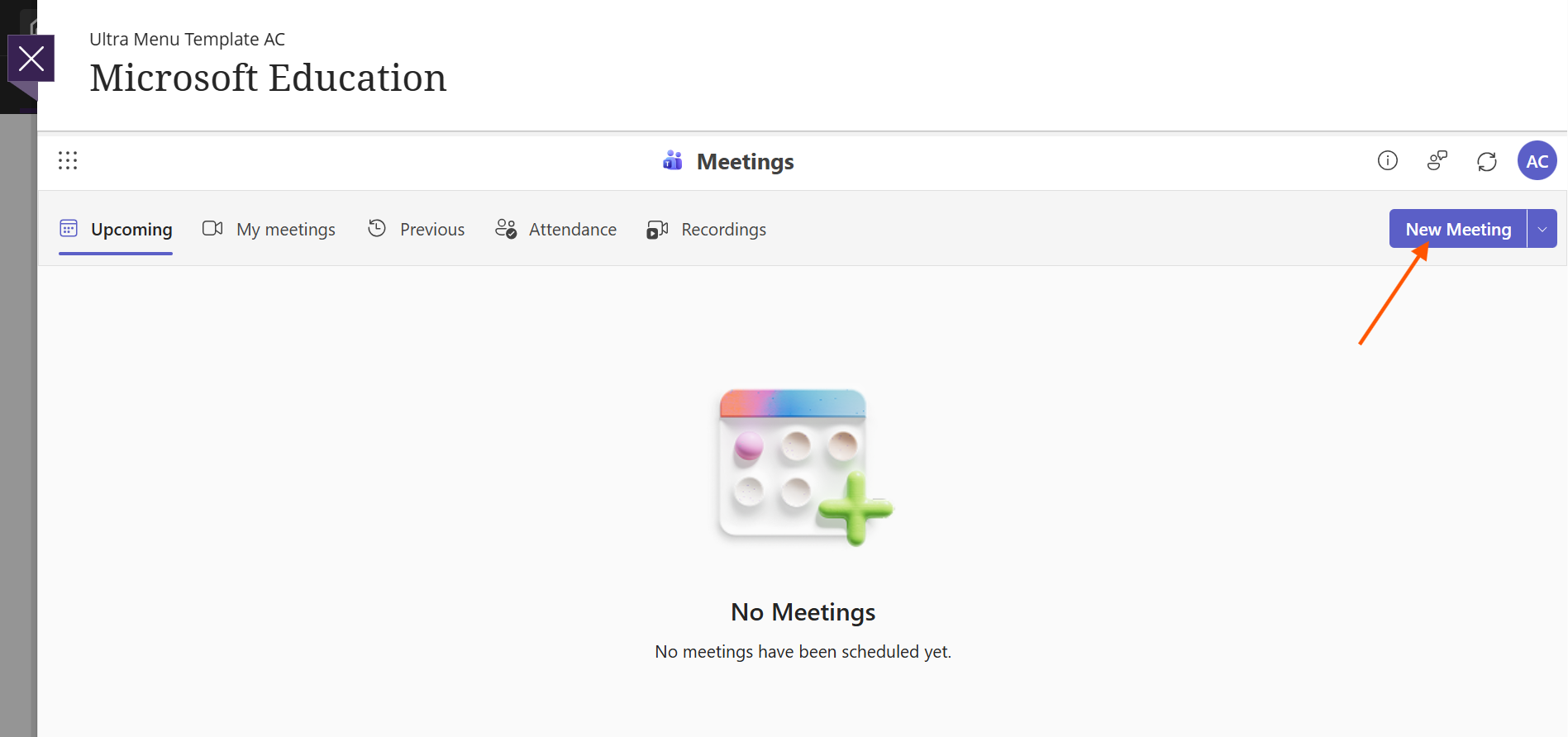
The New Meeting button in the Meetings screen. Enter the meeting title, date, and start time.
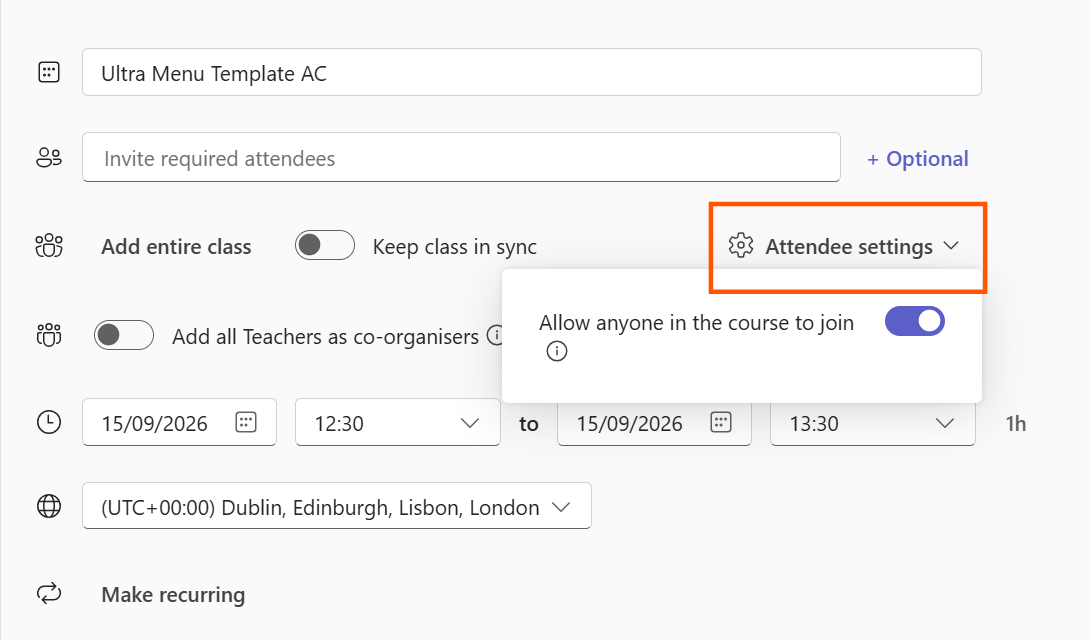
Important: When adding participants, take care with the following options:
- Do not select “Add entire class” or the “Keep class in sync” toggle — this will send an email invitation to all students.
- Instead, select “Attendee settings” and “Allow anyone in the course to join”.
Select Save to create the meeting.
Select Save to create the meeting. The meeting will now appear in the Upcoming tab.
To enable attendance tracking:
- Select the three dots (⋯) next to the meeting.
- Copy the meeting link.
- Paste the link into the Module Site calendar.
Note: The person who creates the meeting must add the link to the module calendar.
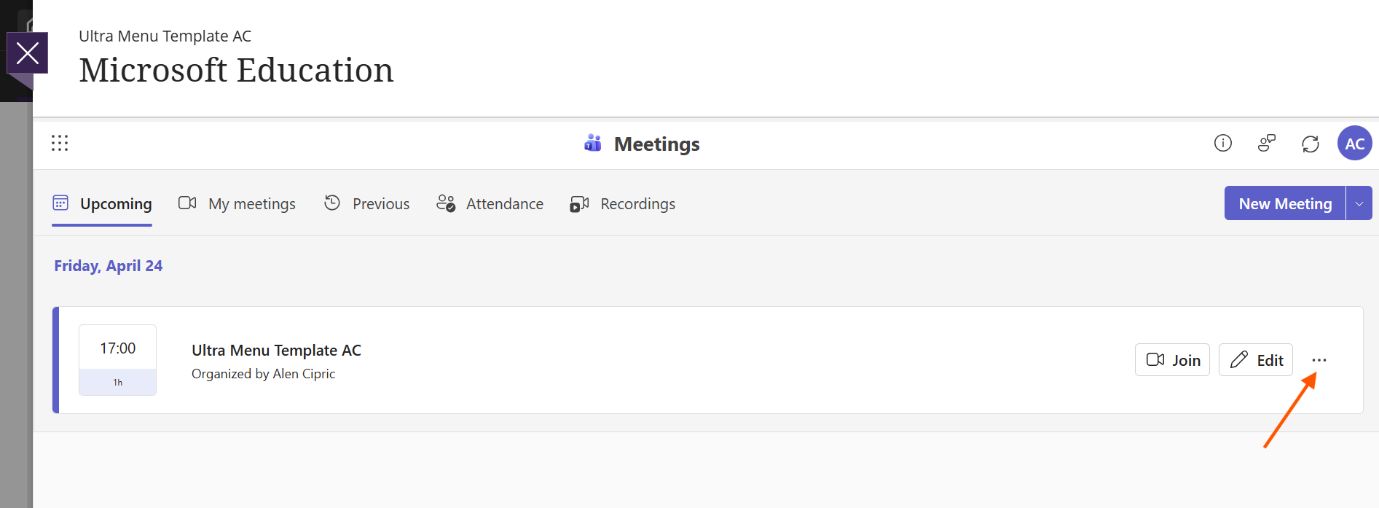
Use the More options (⋯) menu to copy the meeting link for the Module Site calendar.