October 2026 Updates
Improvements to the beta Content Editor in Blackboard Documents
Keyboard navigation and accessibility
- Instructors can now navigate the inline toolbar using the arrow keys instead of the Tab key
- In the Edit, Format, and Insert menus, using the up or down arrow key now moves the selection one item at a time
- Keyboard shortcuts display plain text (for example, Command and Control) instead of Unicode symbols
- Instructors can now use the Delete or Backspace key to decrease a paragraph’s indentation level.
Toolbar and menu updates
- Toolbar menus with dropdown options now clearly indicate the currently selected item
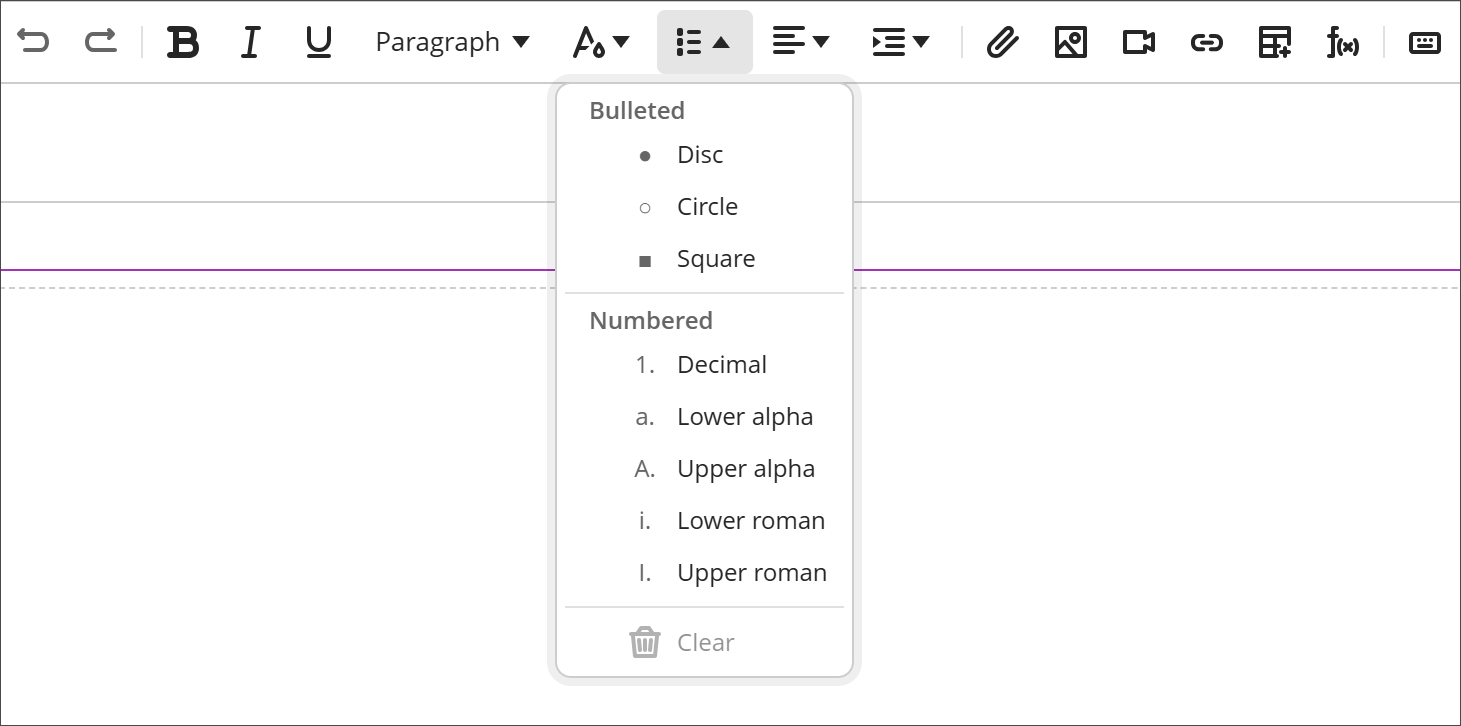
- The List menu now includes section headers
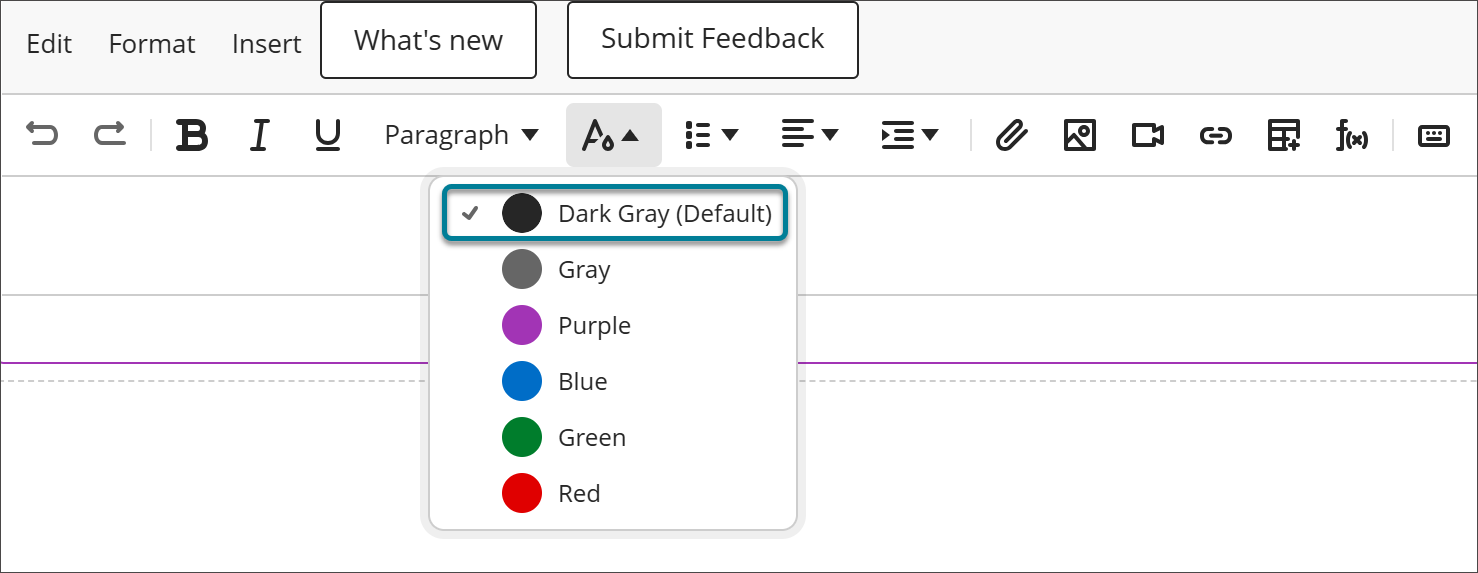
- The default font colour is now labelled Dark Grey (Default) instead of Black to accurately reflect the shade being applied; the colour itself is unchanged.
List behavior
- Deleting a list item now merges it with the previous item, keeping remaining items together in a single continuous list rather than splitting it in two.
- In the list style menu, section headers (Bulleted and Numbered) are now informational only and can no longer be selected
Image and file handling
- Resized images now retain their dimensions during content conversion, and extra space above and below converted images has been removed.
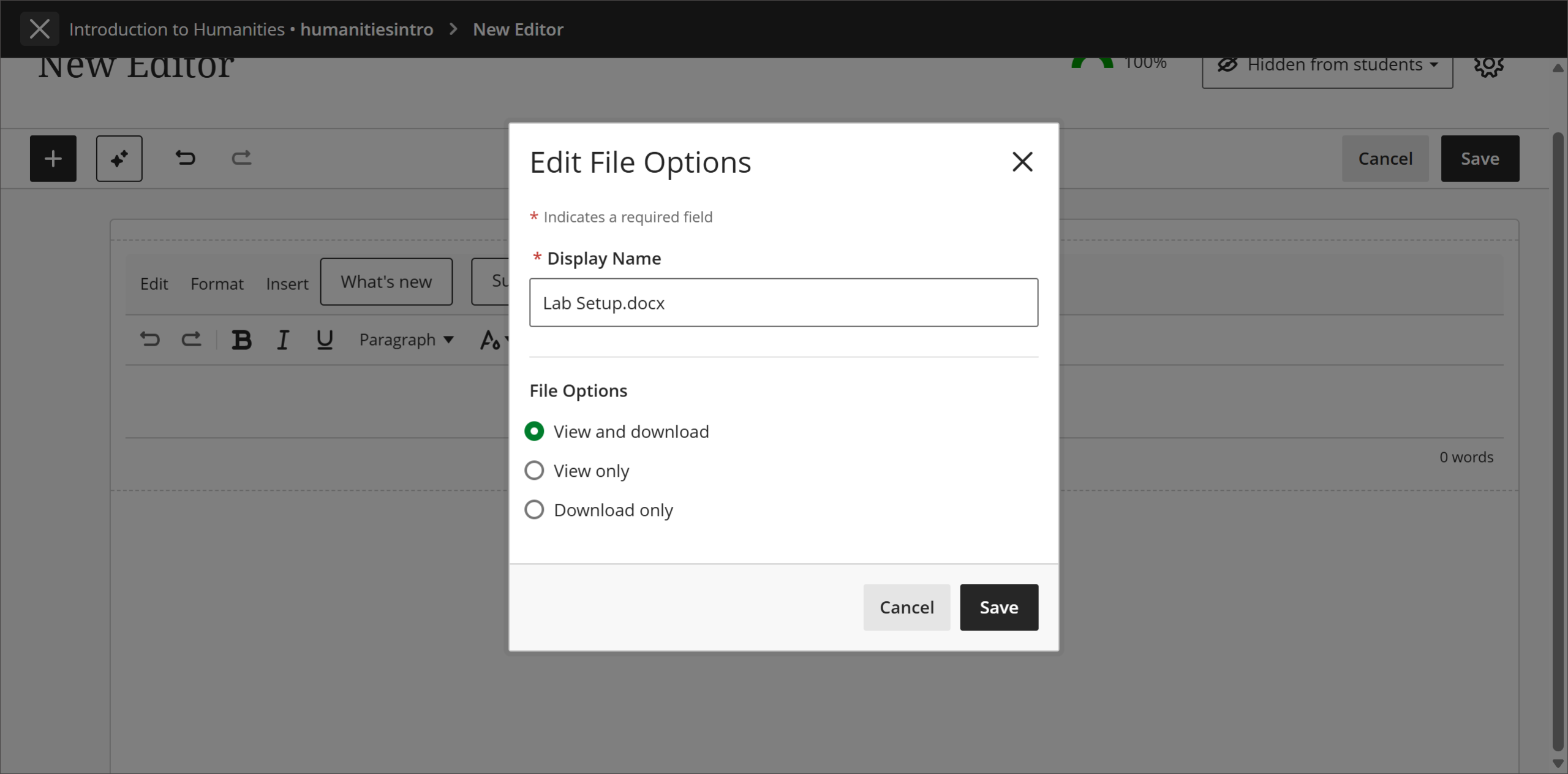
- File properties now display when uploading file attachments. This gives instructors the opportunity to review and configure settings, including alternative text, before the file is inserted.
- File attachments are now preserved when converting content from the old editor to the new editor for a more reliable migration experience.
- Copying and pasting files directly from one editor to another is now blocked to prevent file permission and access issues. Instructors receive a notification explaining that the file must be uploaded instead. This is a temporary change while a long-term solution is developed to support file permissions across editors.
Code formatting
- Formatting multiple selected lines as a code block now creates one combined code block, rather than converting each line into its own separate block.
Math authoring
- The Content Editor now renders LaTeX and MathJax for inline and display equations. Instructors can paste LaTeX directly into the editor, where it renders automatically as formatted mathematical notation. This is the foundation for an expanded math authoring experience in future releases.
Start AI Conversations in a new immersive experience
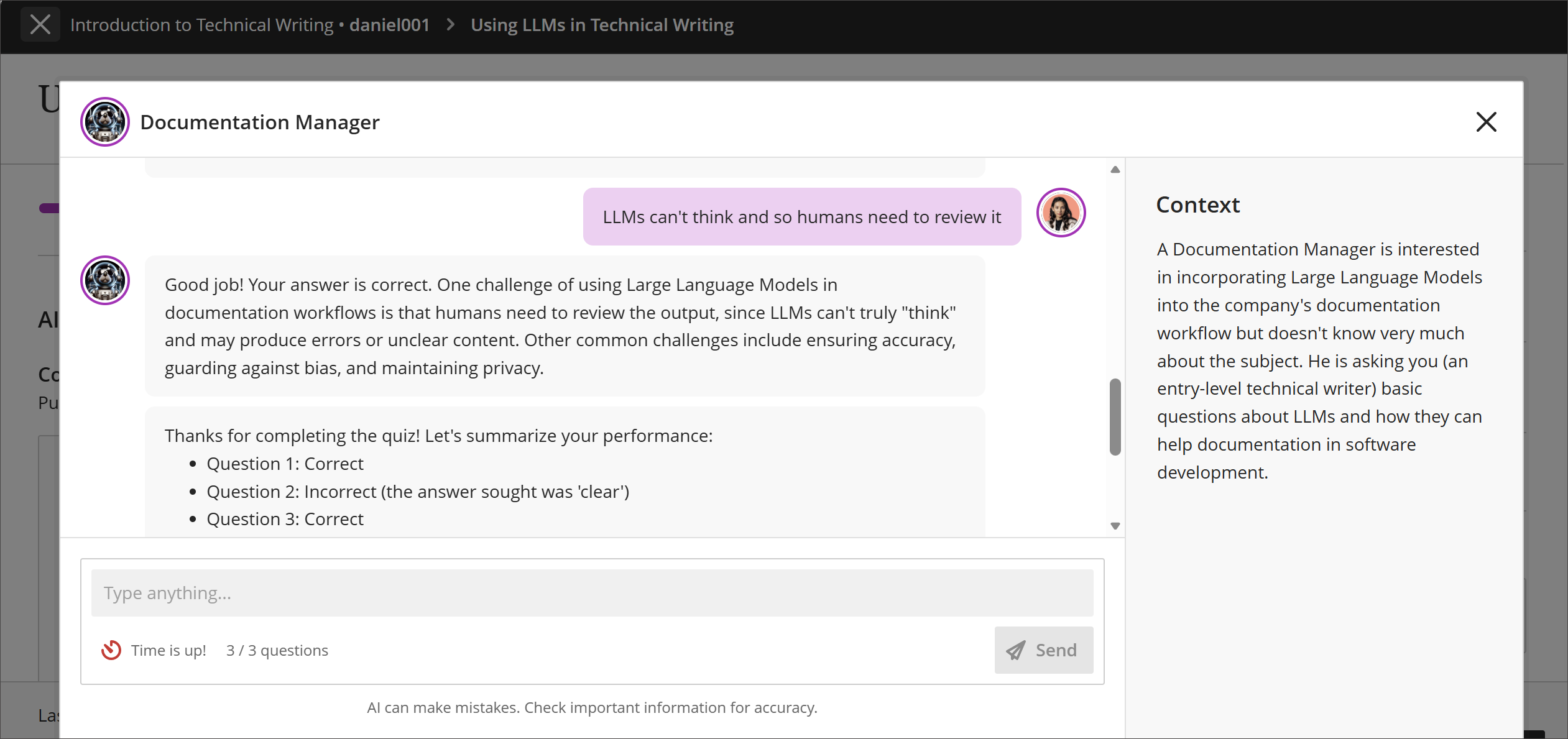
AI Conversations now open in a dedicated, focused view for students across the three conversation roles. Students begin from an explicit Start conversation button, and the conversation fills a larger area that hides settings and assessment details from view.
Students
- After selecting Start attempt, students select a new Start conversation button to begin. The conversation no longer begins as soon as the assessment opens.
- The conversation opens into its own view with more space for the exchange, and the settings and supporting details that previously surrounded it are hidden.
- Students leave the conversation and submit their attempt, including the reflection question, the same way they did previously.
Lock an AI Conversation to a specific language
Instructors can now set the language an AI Conversation is conducted in. When a language is enforced, the AI responds in that language for the entire conversation and will not switch, even if a student asks it to.
Instructors
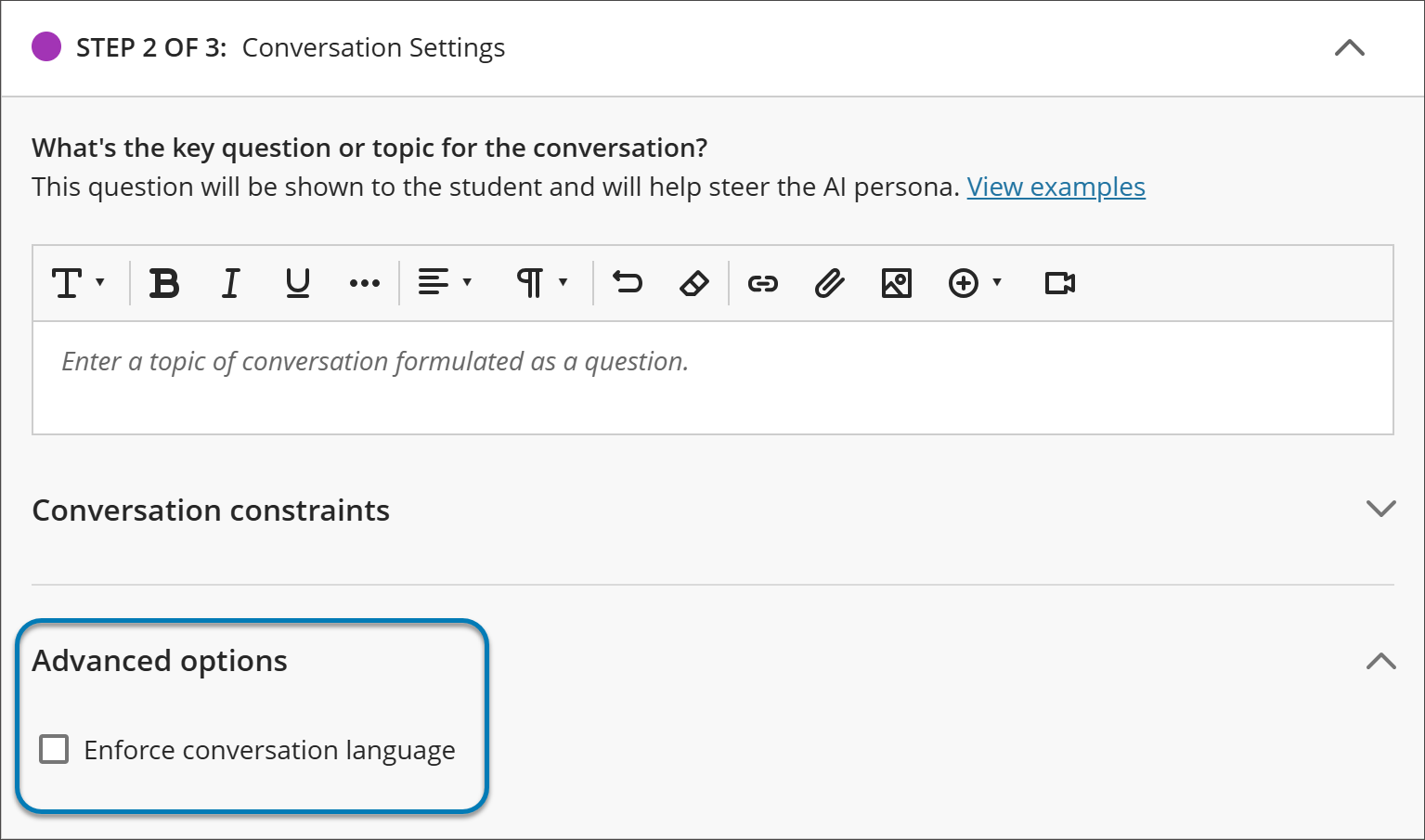
When creating or editing an AI Conversation, open Advanced options and select the language to enforce. The setting applies to the whole conversation, including the AI’s opening message, its questions, its responses to the student, and the closing summary.
- The language setting is saved with the conversation and persists when the conversation is reopened for editing.
- The setting is available across AI Conversation types, including Socratic, Roleplay, and AVA Pulse Quiz.
- When a conversation is grounded in course content, the AI generates its questions and responses in the enforced language regardless of the language of the source material.
This is particularly useful for language courses, where the point of the activity is sustained practice in the target language rather than a conversation about it.
Students
When an instructor has enforced a language, the entire conversation is conducted in that language from the first message onward. Students cannot change the language mid-conversation. If a student asks the AI to continue in a different language, the AI declines and continues in the language the instructor set.
Export and import rubrics
Instructors can now export rubrics from their course and import them into other courses.
Instructors
The Course Rubrics page is a dedicated page for managing all rubrics in a course. To access it, select Manage Course Rubrics in the Course Rubrics section of Gradebook Settings. From the Course Rubrics page, instructors can export and import rubrics.
Exporting a rubric
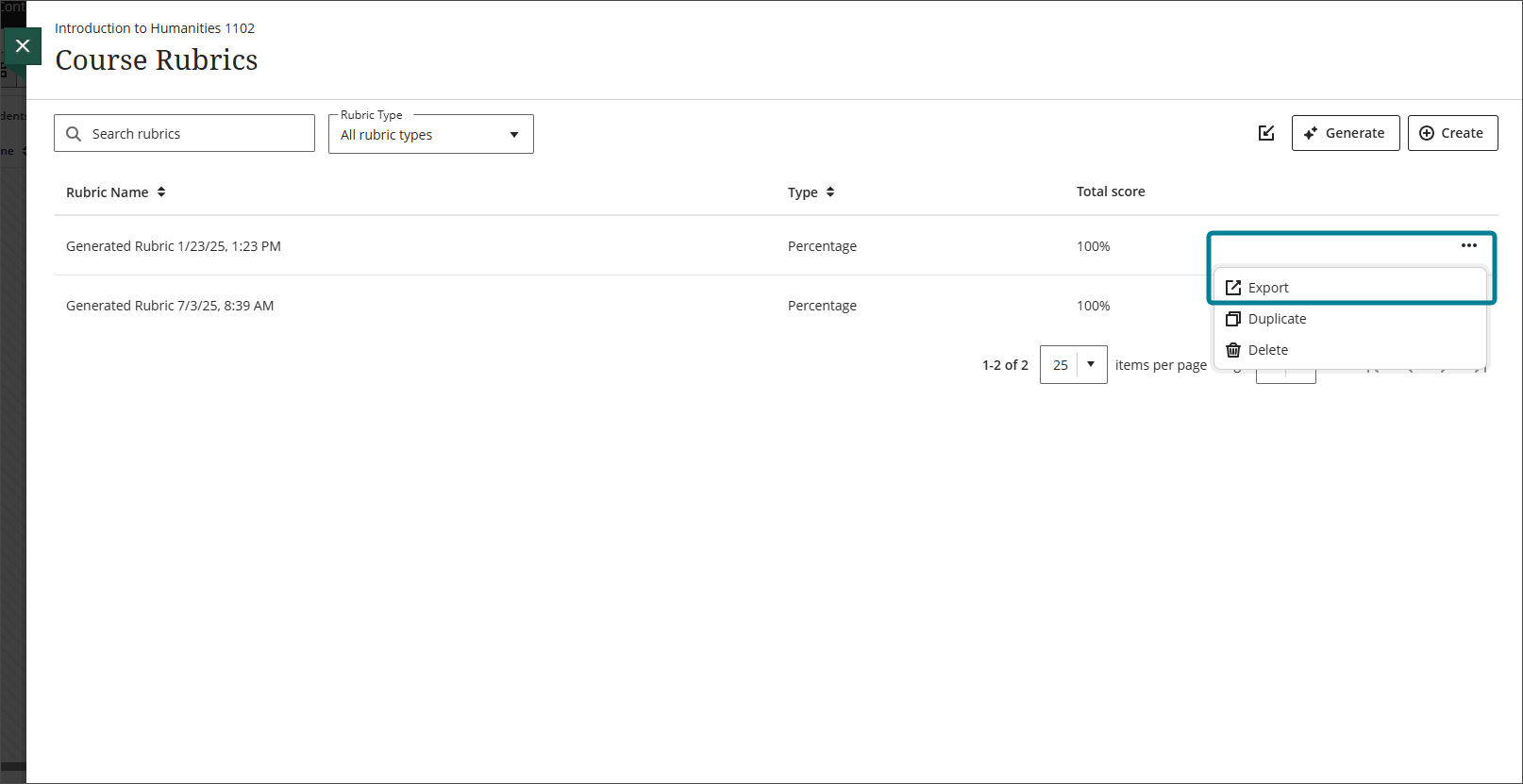
Select the ellipsis menu on the rubric and select Export. The rubric downloads automatically as a zip file. The zip file is named with the rubric name and course title and can be found in the instructor’s downloads folder. The zip file is intended for importing into another course and is not a viewable document.
Importing a rubric
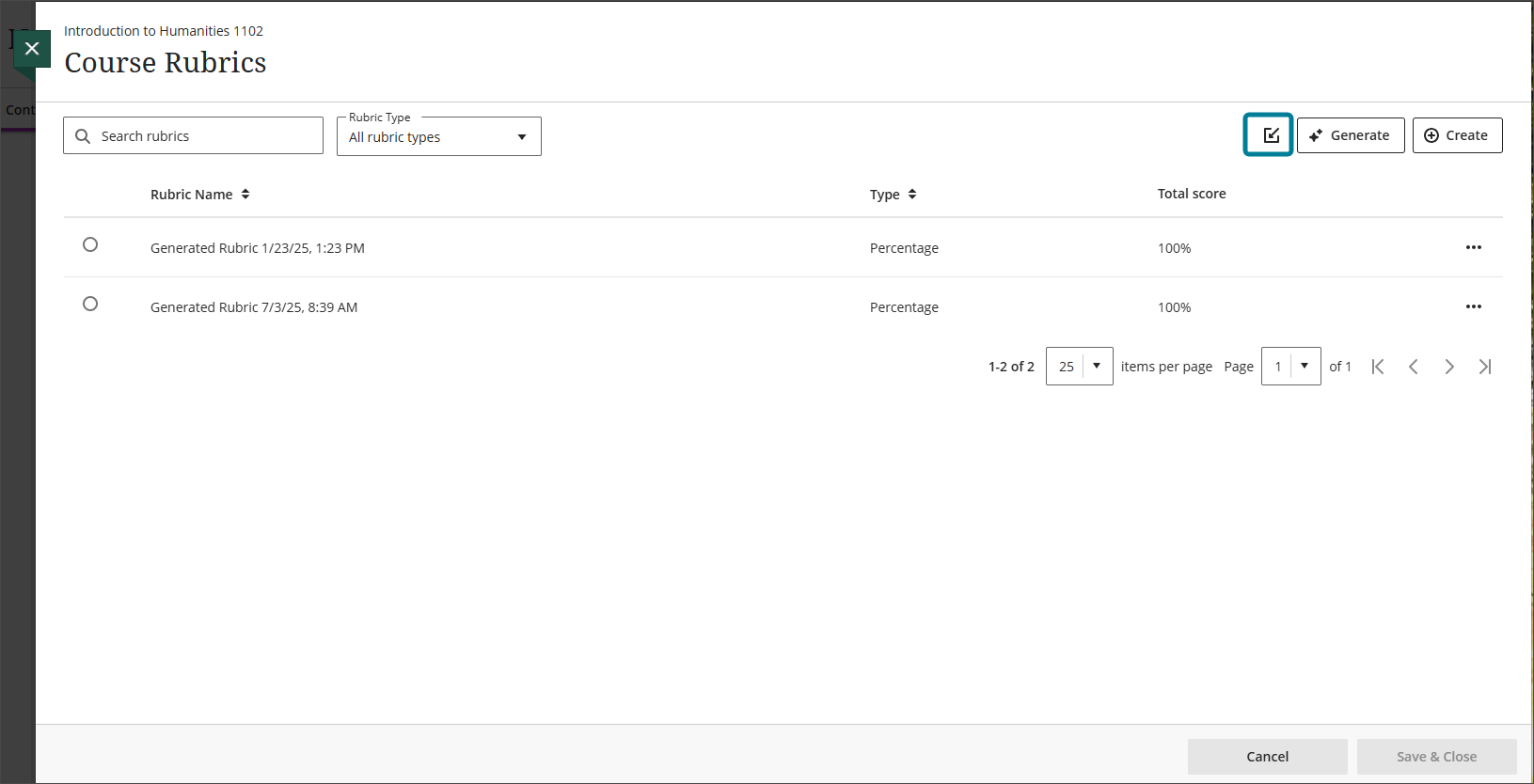
Select the Import icon on the Course Rubrics page, then select the zip file to import. Only rubrics exported from Blackboard LMS can be imported. The rubric imports automatically. If the same rubric already exists in the course, an error message appears to prevent duplicate rubrics from being created.
Manage rubrics from a dedicated course rubrics page
Rubrics now have a dedicated management page in the course, replacing the previous workflow of managing rubrics directly within the Gradebook Settings and Assignment Settings panels. The options available to instructors depend on their rubric privileges.
Instructors
The Course Rubrics page displays all rubrics in the course in a sortable, searchable table. Instructors can filter rubrics by type and use the ellipsis menu on any rubric to access additional options. Options to Create, Generate, Import, and Export rubrics are also available from the page.
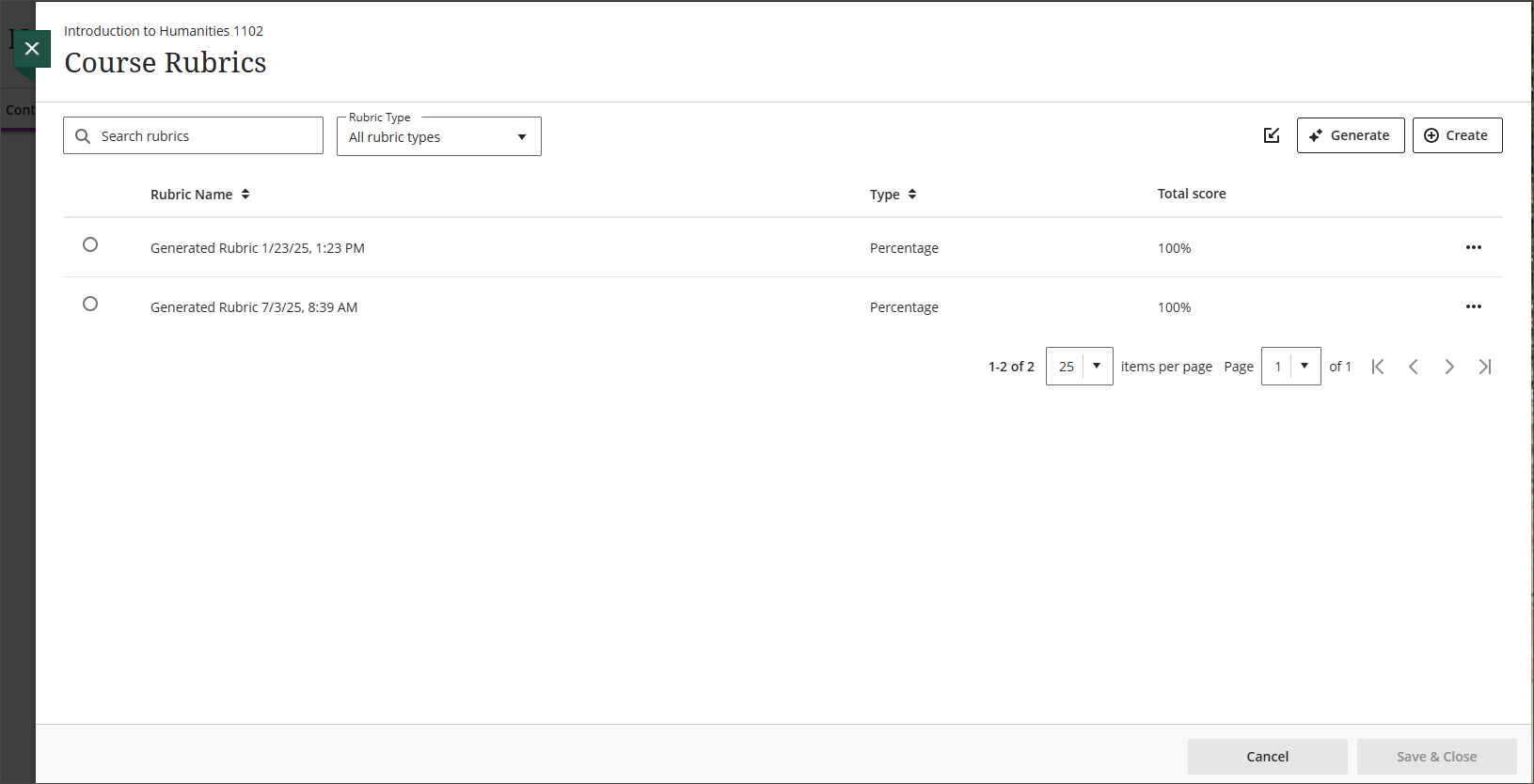
Instructors can access the Course Rubrics page in two ways:
- From Gradebook Settings, select Manage Course Rubrics in the Course Rubrics section.
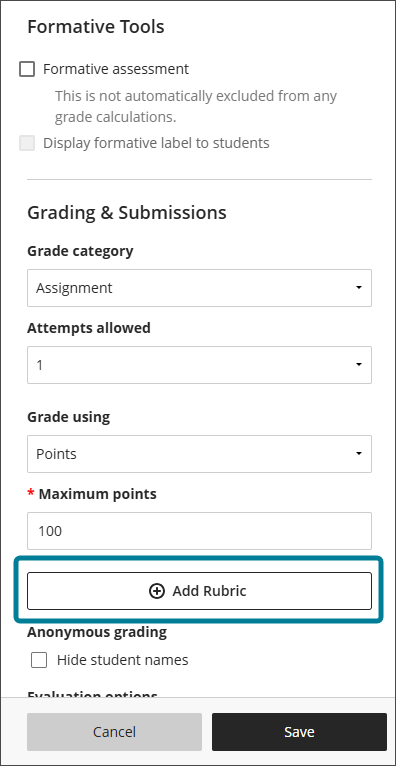
- From Assignment Settings, select Add Rubric in the Grading & Submissions section.
When accessing the Course Rubrics page from Assignment Settings, instructors can select the radio button next to a rubric and select Save & Close to add it to the assignment. Once a rubric is added to an assignment, instructors can select the trash can icon to remove it.
Display username and last access date in the gradebook grid view
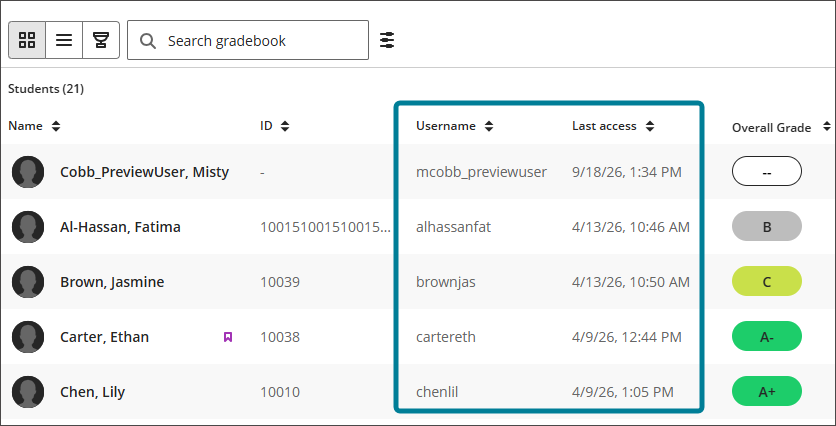
Instructors can now display username and last access date as optional columns in the gradebook grid view.
Instructors
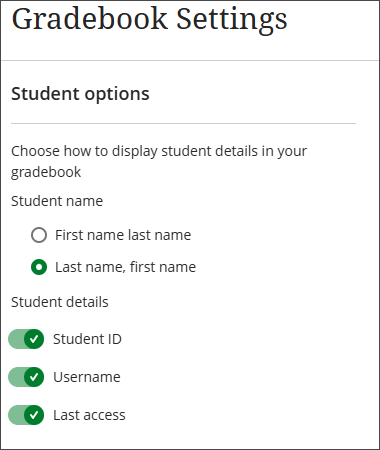
Two new toggles are available in the Student options section of the Gradebook Settings panel: Username and Last access. Both toggles are off by default. When enabled, each toggle displays a sortable column to the right of the Name column in the grid view.
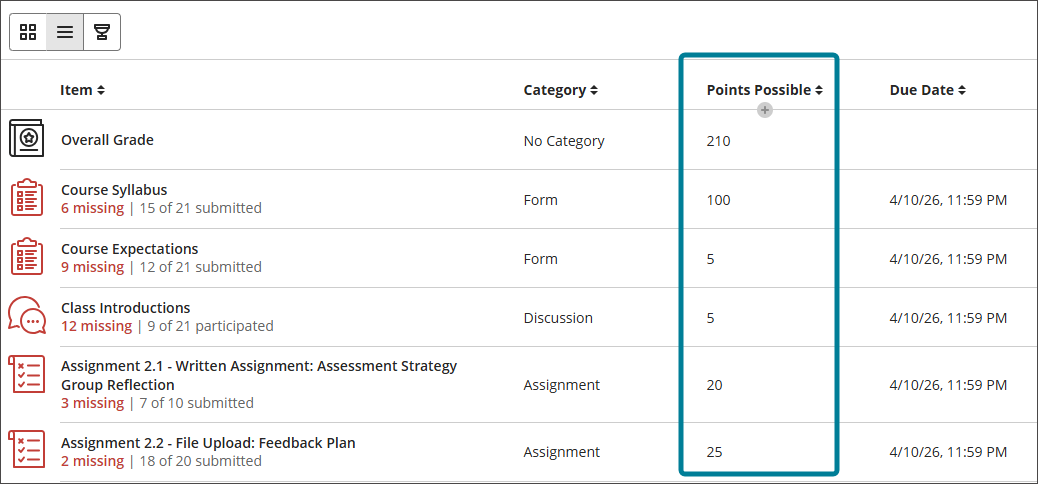
Display points possible in the gradebook list view
Points possible are now displayed as a sortable column in the gradebook list view. It is automatically populated based on the points configured for each gradable item. Items without a point value are blank.
Restore submission receipt search for anonymously graded assignments
Instructors can now search by submission receipt number in the gradebook to locate submissions for anonymously graded assignments.
View exception indicators in the gradebook grid view
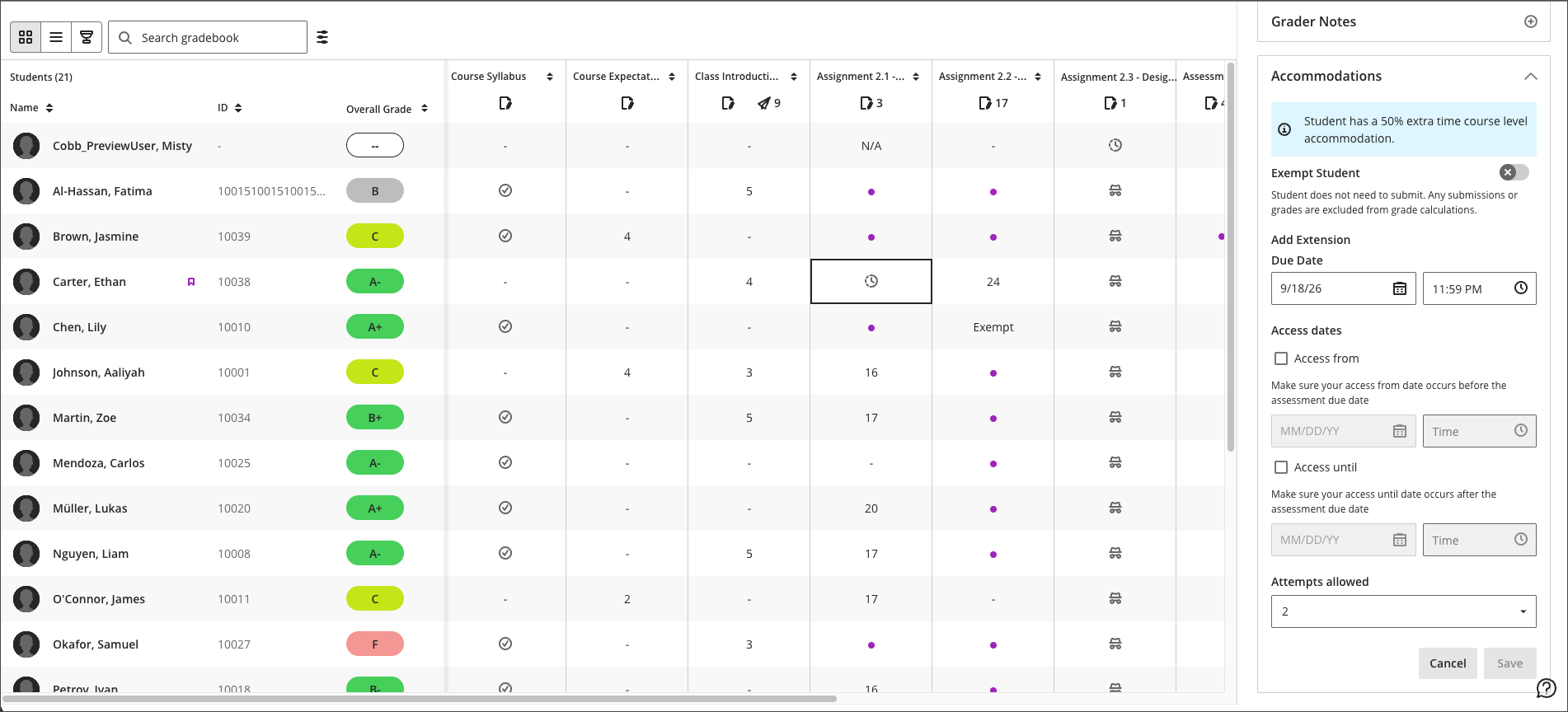
A clock icon now displays in a student’s cell when they have an exception on a gradable item. Exceptions include differences in due date, access dates, or attempts allowed. The clock icon displays from the time the exception is set until the item is graded.
To view or manage the exception details, select the cell to open the Grade Details panel, then navigate to the Accommodation section.