To access the accessibility report for any Blackboard site that you are an instructor on, click on ‘View course and institution tools’ under ‘Details & Actions’ (left hand side of any Blackboard site). In the panel that slides out to the right, click on ‘Report Module Accessibility’. The overview report for the Blackboard site will open in a new browser tab. The report will include guidance to fixing files that have accessibility issues.
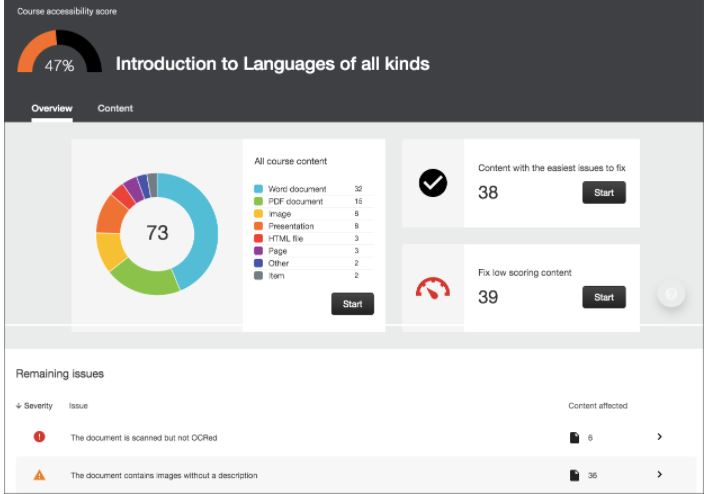
Ally’s course accessibility report includes Overview and Content tabs so that you can get the big picture as well as specific details about the accessibility of your digital course content.
- The Overview tab shows the accessibility score for the course, course content grouped by content type, and a list of all issues identified in the course
- The Content tab shows you the content with accessibility issues.
Accessibility score
At the top of the report is an accessibility score for the entire course.
Scores range from Low to Perfect. The higher the score the fewer the issues.
-
 Low
Low (0-33%): Needs help! There are severe accessibility issues.
-
 Medium
 (34-66%): A little better. The file is somewhat accessible and needs improvement.
-
 High
High (67-99%): Almost there. The file is accessible but more improvements are possible.
-
 Perfect
 (100%): Perfect! Ally didn’t identify any accessibility issues but further improvements may still be possible.