Adding Content to a Blackboard Ultra Site
There is a number of ways to add content into a learning module or folder or simply into the main Course Content area of a Blackboard Ultra Site.
These include:
– Documents
– Links
– Discussions
– Assignments
– Tests
Create a Document
Within a “Document” is a blank page to which you can add multiple items and file types.
On the Course Content page, you can create a “Document” in an Ultra site to present a combination of content. For example, you can include introductory text for a topic or session, an audio file, a video or an image. When students select the document title, the materials you added are all presented together on one page. Students see the content just as you see it, without the editing options.
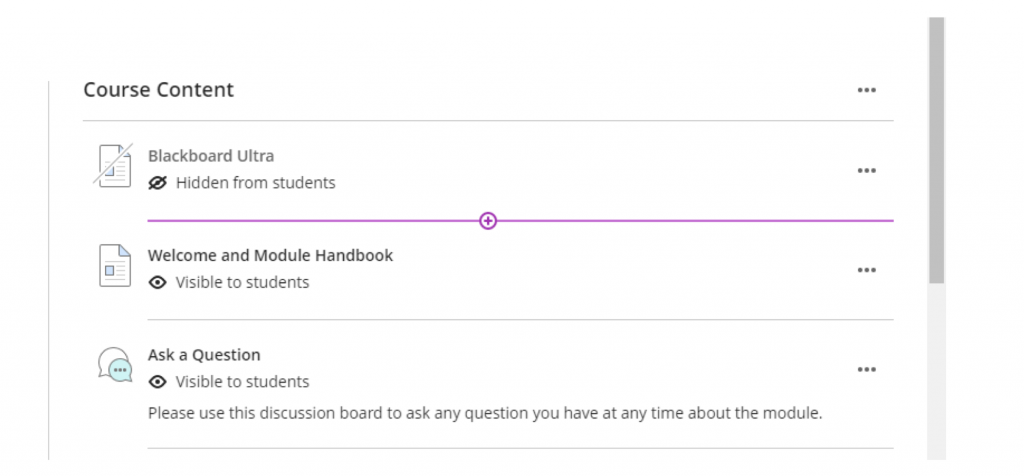
Adding content in Blackboard Ultra is a very easy process, firstly you need to look for a line within the course content area, as shown in fig.4, then click on the purple “+” sign.
Fig. 4 Adding content using the “+” symbol
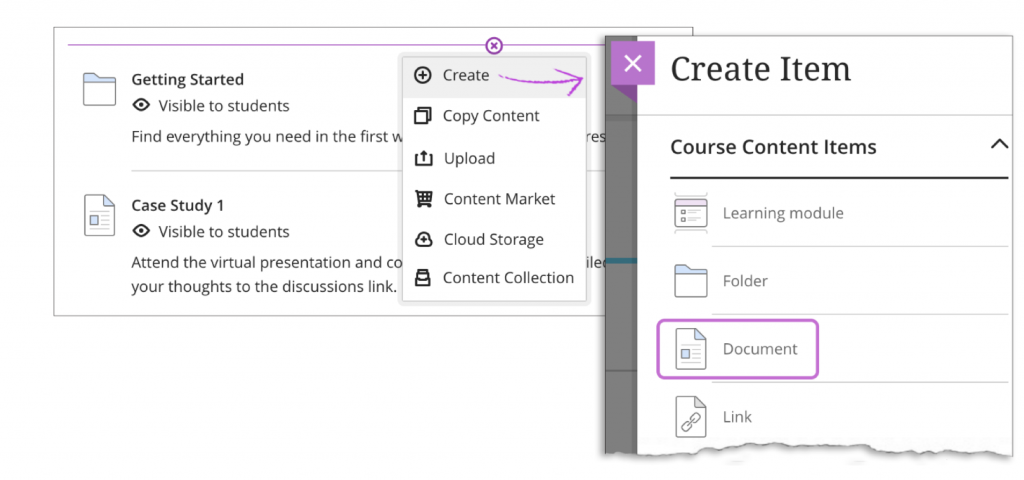
This will in turn change into a purple “x” with a drop-down menu which is shown in fig.5 within that menu, select “Create” to open the Create Item panel and select Document.
The new document page opens.
You can also expand or create a folder or learning module and add a document
Fig.5 Drop down list option for adding content
Video about creating a document
Task: watch a video about creating a document. Please click and watch the video about creating a document
The following narrated video provides a visual and auditory representation of some of the information included on this page. For a detailed description of what is portrayed in the video, Open the video on YouTube, navigate the More actions, and select Open transcript.
Video: Create a document explains how to create a document page in the Ultra module view.
Adding Items to a New Document page
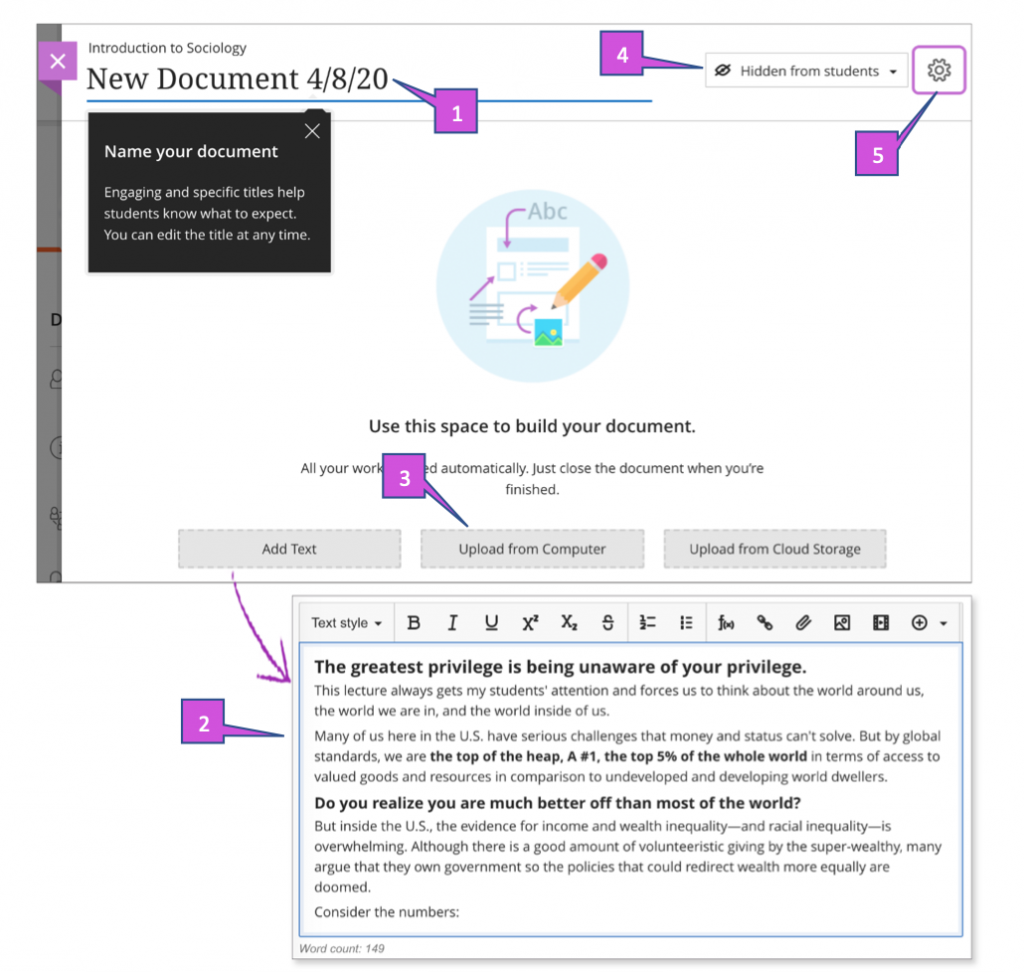
On the new Document page, use the options at the bottom of the page to add content. You can add as many text blocks and files you want.
Fig. 6 Adding new items to a document
Type a title (fig. 6)When adding a new document, the title appears as the link students select to view the materials. If you don’t add a title, New Document and the date appear in the content list.
Add text block (fig. 6)Select Add Text to open the editor. You can also paste text from a Word document.
*Quick Tip* you can also use the editor to embed images and attach files along with your text. To use your keyboard to jump to the editor toolbar, press ALT+F10.
On a Mac, press Fn+ALT+F10. Use the arrow key to select an option, such as a number list.
Add files Select Upload from Computer and browse for or drag files from your computer, such as a Word document or an audio file. You cannot add a folder of items.
More on how media files appear.
Upload from Cloud storage: You can upload files from cloud storage, such as OneDrive® and Google Drive™. When you add a file from cloud storage, the system makes a copy of the file in the Blackboard site. Any change you may make to a file within your Blackboard will not apply to the file in Cloud storage and vice versa. If your browser allows, media file display inline.
Task: Create a document and add some text.
Using the information above and what you have seen in the video, please create a “Document” and add some text.
Show or hide the document (fig. 6)Students can’t see a document until you choose to show it. You can create all your content ahead of time and choose what you want students to see based on your schedule. You can also set availability conditions based on date and time. On the Course Content page, students can see when a Document is set to be available.
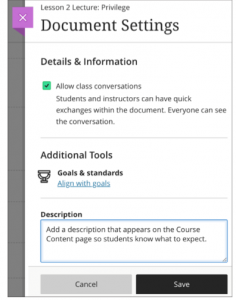
Allow class conversations (fig.6)What is your students have questions? You can allow conversations within a document, and anyone can contribute. Select the Settings icon to open the Document Settings panel and select the conversations check box. As the conversation develops, it appears only within the document.
Add an optional description.The description appears within the document title on the Course Content page shown in fig. 7. Content item descriptions are limited to 250 characters.
Fig. 7 Optional description in document settings
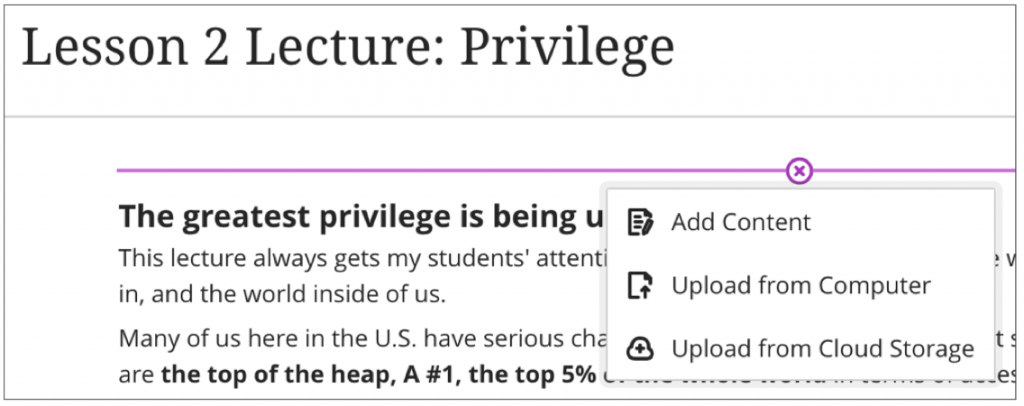
Adding more content to a Document
After you have added your first piece of content to your document, select the purple “+” sign wherever you want to add more content, this can be done by clicking on any line within your document. Once you click on the line, the sign will change to “x” with a drop down menu as shown (fig. 8). You can add as many text boxes and files as you want, wherever you want.
Fig. 8 Adding more content to a document
Saving a Document
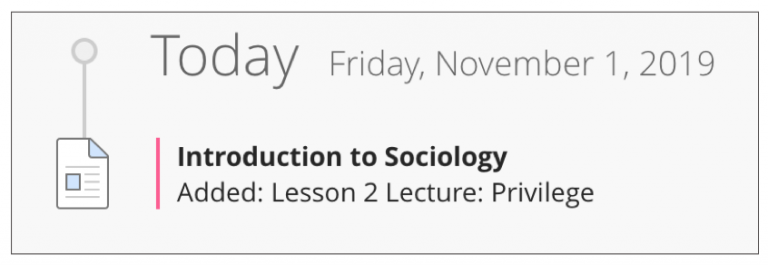
After you save a document, it will appear in the content list under “Course Content”. You can change the document’s content at any time and change the order of the items you added to the document (fig. 9)
In their activity streams, students are notified a new document is available.
Fig. 9 Activity stream
Edit, reorder and delete documents
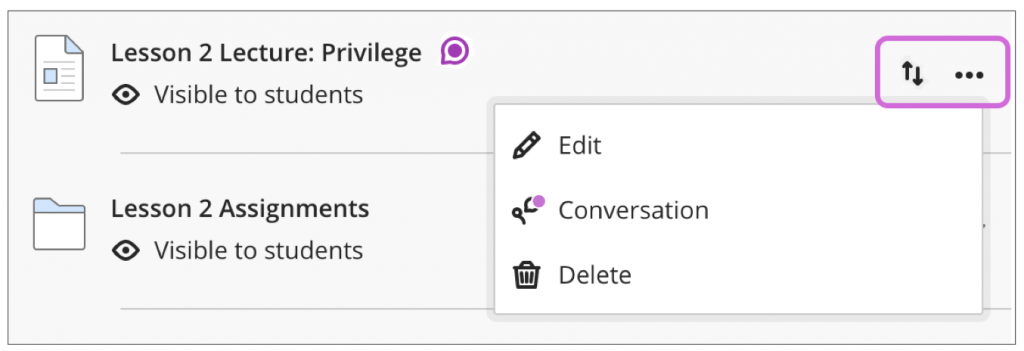
You can make changes to existing documents and change where they appear on your Course Content page. Press the Move icon in a document’s row (fig. 10) and move it to a new location. You can also move a document into an expanded folder.
To the right of a document’s name (fig.10) click on the three small dots to open a menu to select Edit, Conversations, and Delete.
Fig.10 Edit, reordering or deleting a document
Delete documents
You can delete a document from the site or hide it from students to preserve the information. Students can’t access hidden documents on the Course Content page.
Add files, images, audio and video
On the Course Content page, you can browse for files in cloud storage or on your computer. In some cases, students select the files to download and open it. If permitted by the settings in a browser, some media files open in a new window or tab. Students are notified in their activity streams when you add content.
Supported file types include DOC, DOCX, HTM, HTML, MP3, MPG, PDF, PPT, PPTX, XLS, XLSX, RTF, TXT, ZIP and most image types.
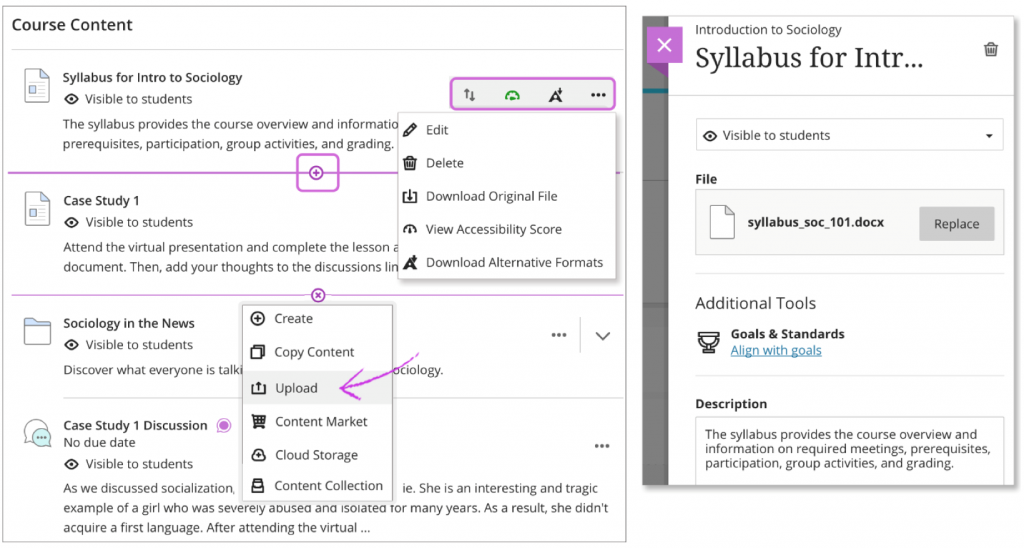
Fig. 11 Uploading files, images, audio and video
Upload files
Select the purple “+” sign (fig. 11) whenever you want to upload files. In the menu, select Upload to browse for files on your computer. The files appear in the content list.
Open a file’s menu to edit the file name, align with goals, replace the files, or add a description. You can also expand or create a folder or learning module and then upload files.
At Westminster you can use Blackboard Ally to be sure your content is more accessible. Accessibility score indicators and alternative formats appear next to files. You can find more information regarding Ally in Appendix 2.
Add files from cloud storage
If you already have files stored, such as in OneDrive and Google Drive, you can add them to your module. You may choose multiple files from cloud storage to add to your Course Content page in one action. The files you add are copies. If you make a change to a file in cloud storage, you need to upload a new copy in your module.
Reorder, edit and delete content easily
Point to an item to reveal the Move icon and drag the item to a new location in the content list. Open the Menu and select Edit or Delete. For example, in the panel, you can change a file’s name, type a description that appears with the file on the Module Content page, or replace the file.
*Quick Tip* with your keyboard, you can move an item to a new location, move an item into an expanded folder, and move a folder into another expanded folder
Zip files
On the Course Content page, you can upload a compressed package of files, also called a ZIP file. Students select the ZIP file to download to their computers and unzip it to access the contents. In the menu, select Upload to browse for the file on your computer.