December 2025 Updates
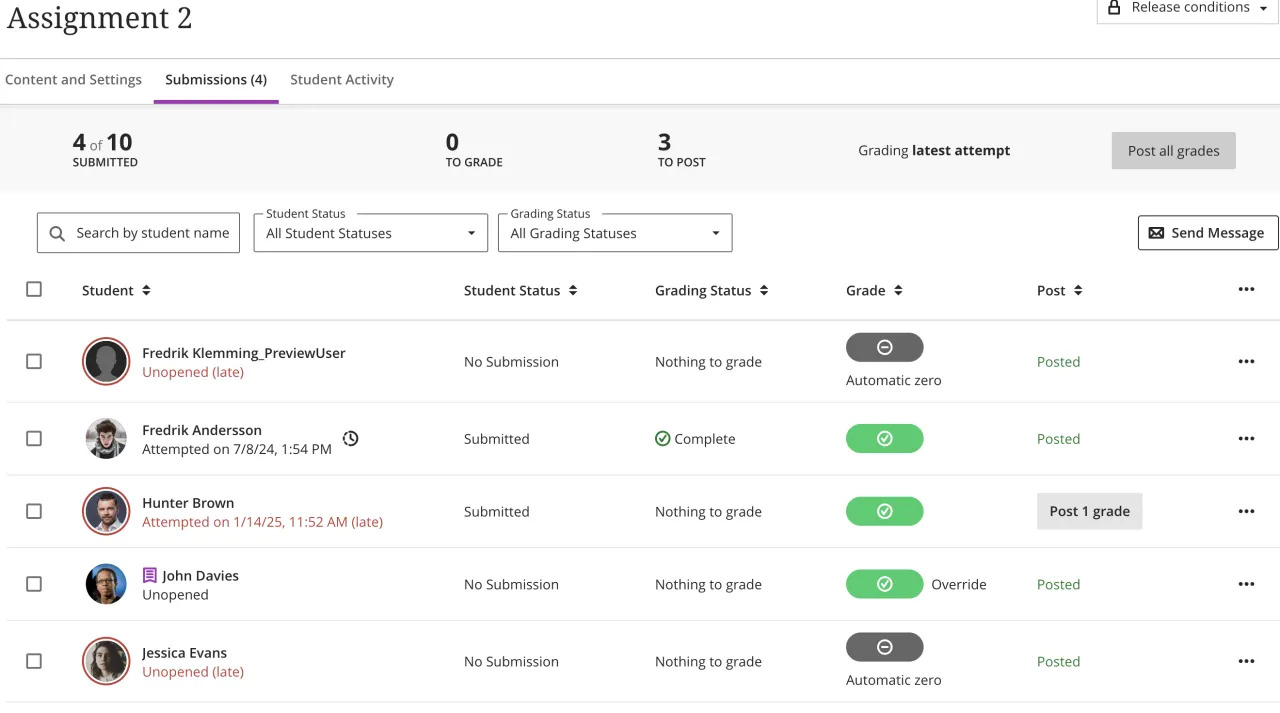
Set release conditions for open or started and for non-assessment content items
Release conditions have been expanded to include activity on items including non-assessment content. Instructors can now control access based on whether a student has opened or started a prerequisite content item.
Key options for release conditions:
- Unopened: The student has not accessed the item.
- Opened or Started: The student has accessed the item.
- Marked Complete: The student has marked the item as complete using progress tracking.
Improved handling of group membership changes
The Flexible Grading and the Submissions page for group assessments have been enhanced to better handle changes in group memberships. These improvements ensure grading accuracy and reduce confusion when groups are modified after submissions:
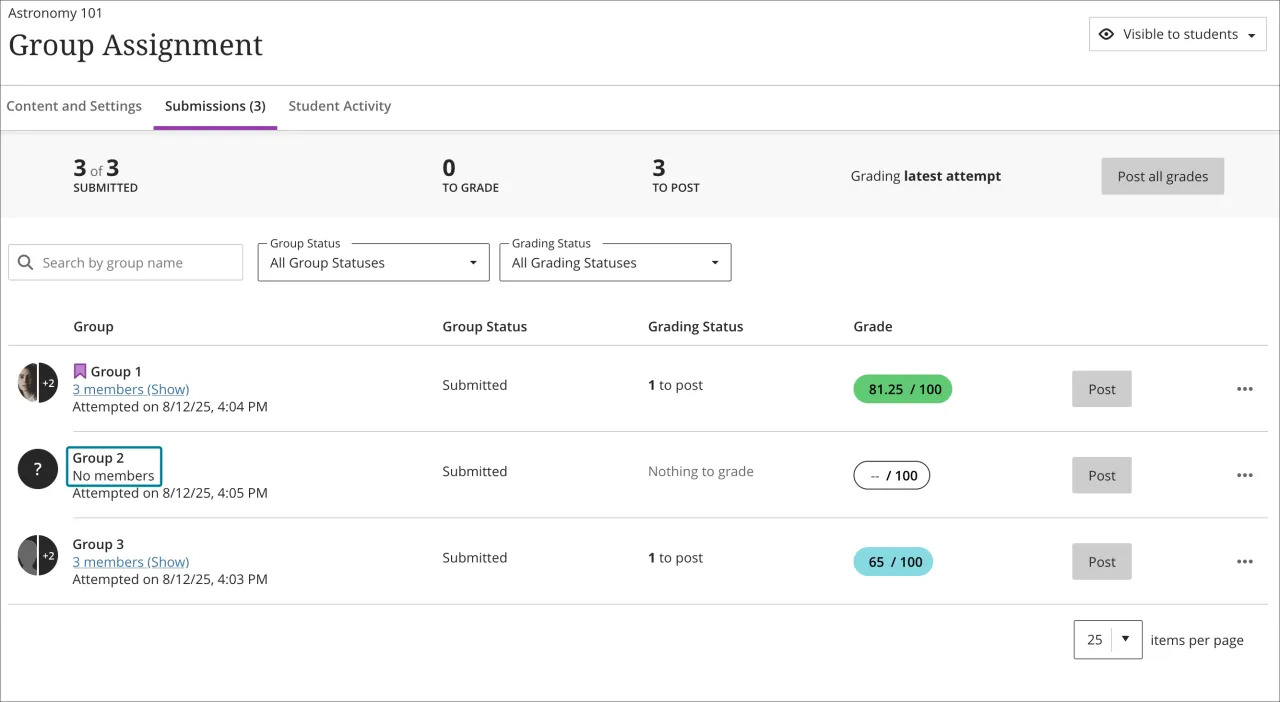
- On the Submissions page, if all members are removed from a group:
- The group avatar displays a ? icon.
- A No members label appears.
- The group name becomes non-selectable.
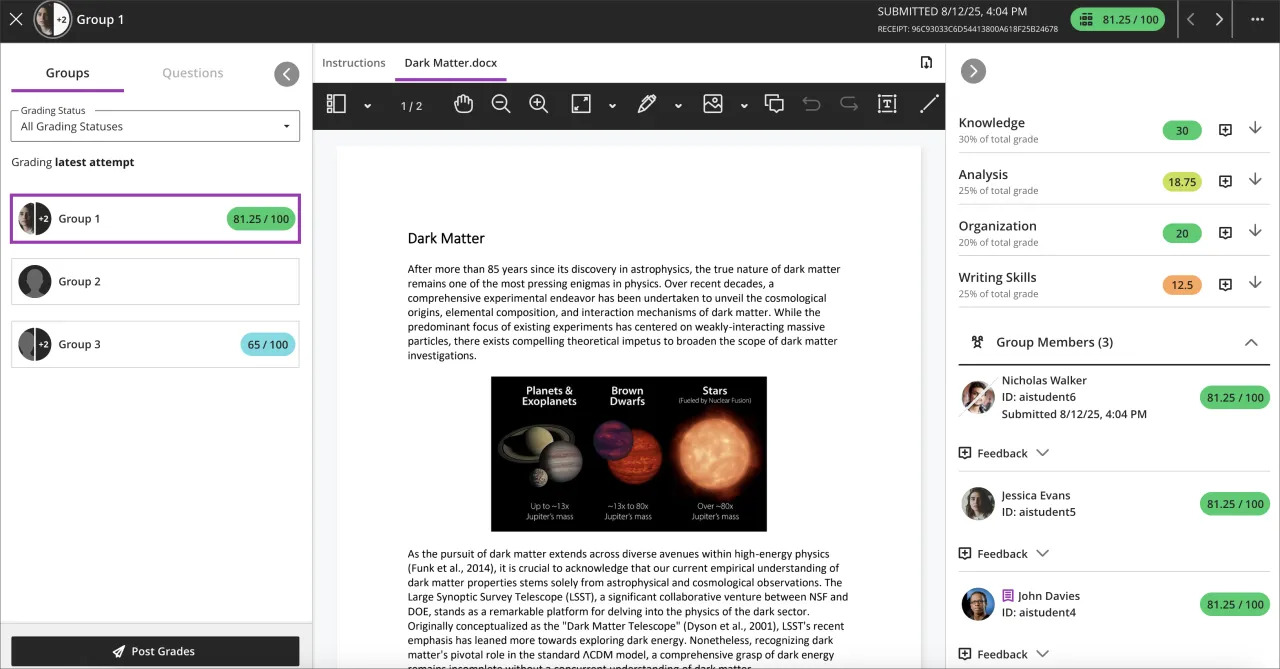
- For active groups, the Flexible Grading interface always shows the current group members for each attempt.
Aligned gradebook submission counts with Show/Hide Unavailable Students Gradebook setting
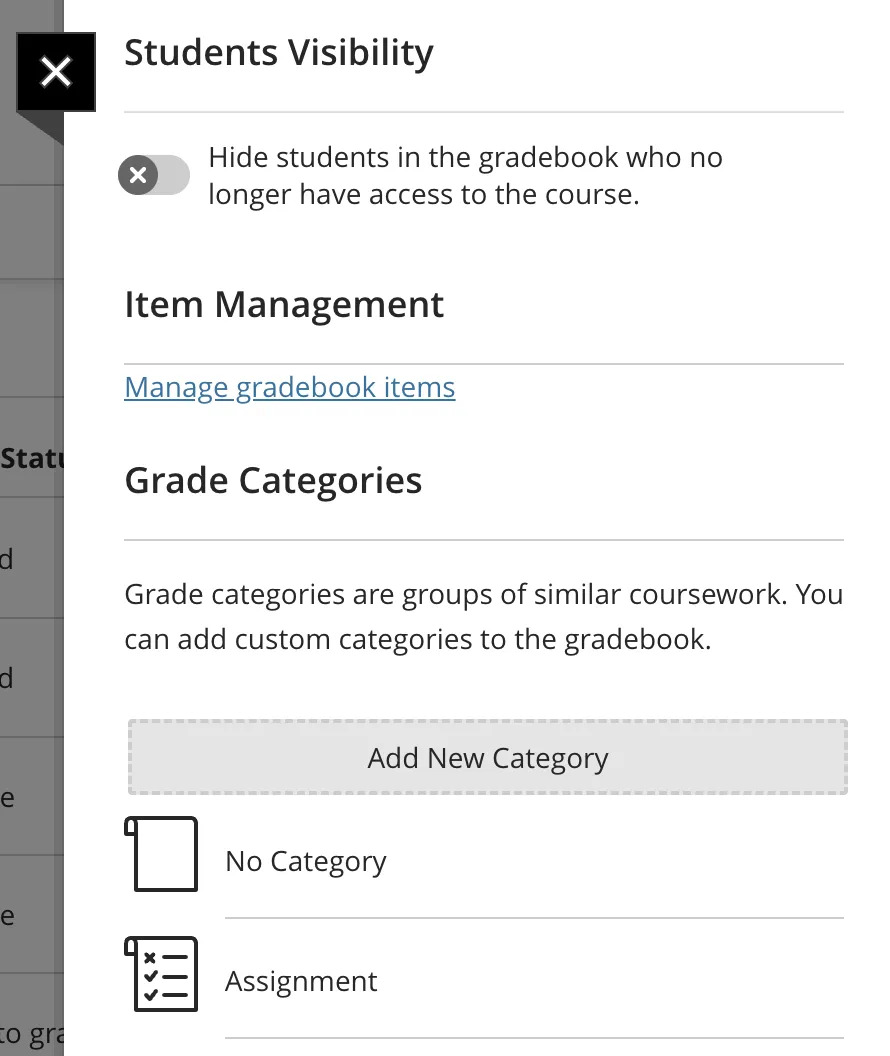
Gradebook submission counts now align with the instructor’s Show/Hide Unavailable Students setting. When unavailable students are hidden, counts exclude their submissions. When unavailable students are shown, counts include their submissions.
This alignment applies to:
- Submissions page
- Gradable items page
- Student Activity page
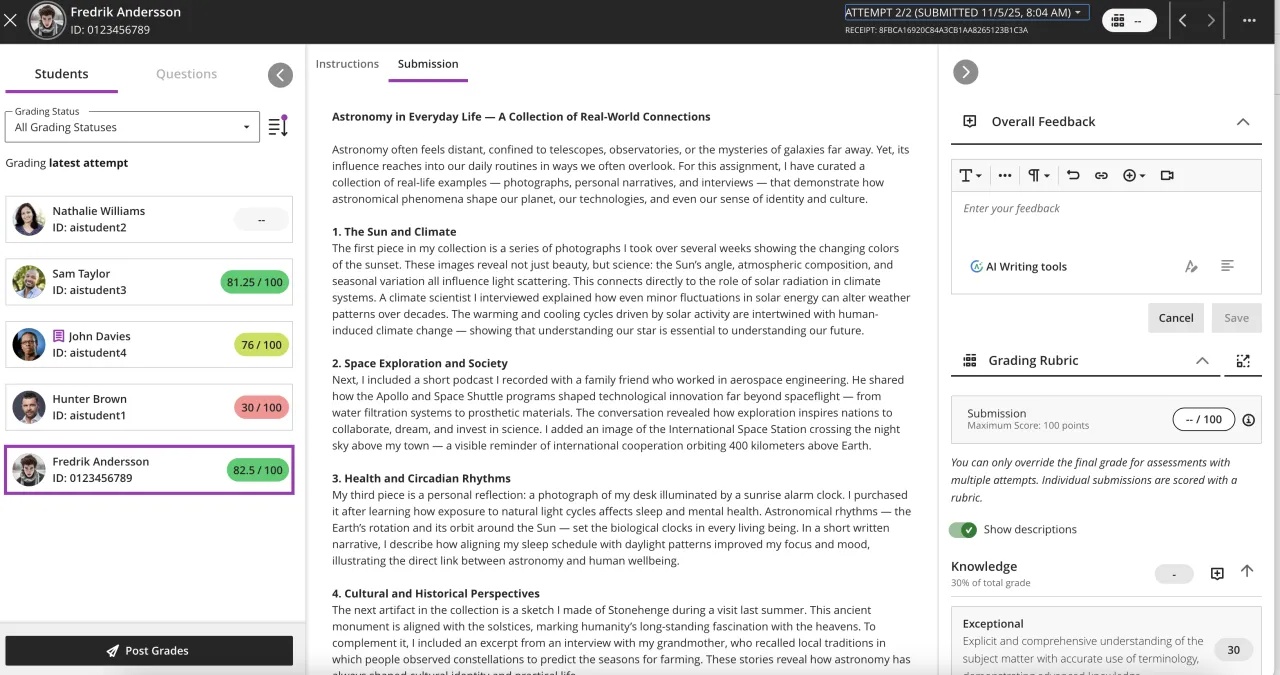
Standardised tabbed interface in Flexible Grading
A consistent tabbed interface for all submission types now improves the Flexible Grading experience. With this update, instructors will now see tabs for:
- Instructions: Always present, even if no instructions are provided (displays “No instructions” when empty).
- Submission: For text, LTI or mixed submissions (text, images, files).
- File tabs: Each file submitted appears in its own tab, rendered in Annotate when possible.
On mobile, navigation buttons appear at the top of the tabbed interface for quick access to previous and next submissions.
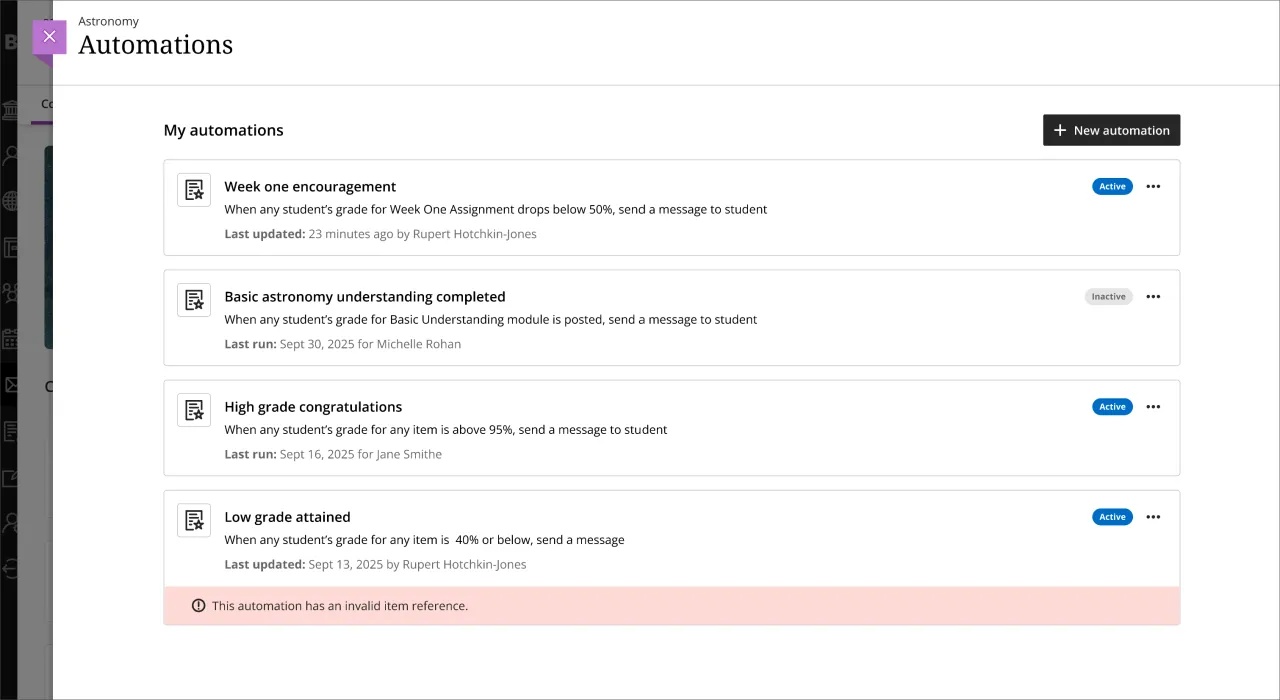
Improved Automations experience
We made several enhancements to Automations based on user feedback.
- Better visibility of Automations actions
- Users can now check the status of each automation directly from the list.
- Each automation now displays who executed it, increasing transparency in multi-instructor courses.
- Cleaner interface and more intuitive interactions, including:
- Pagination on the automation list for smoother navigation.
- Improved error messaging and validation when configuring numeric inputs.
- Minor layout and usability improvements for the automation rules panel.
- String and localisation improvements.
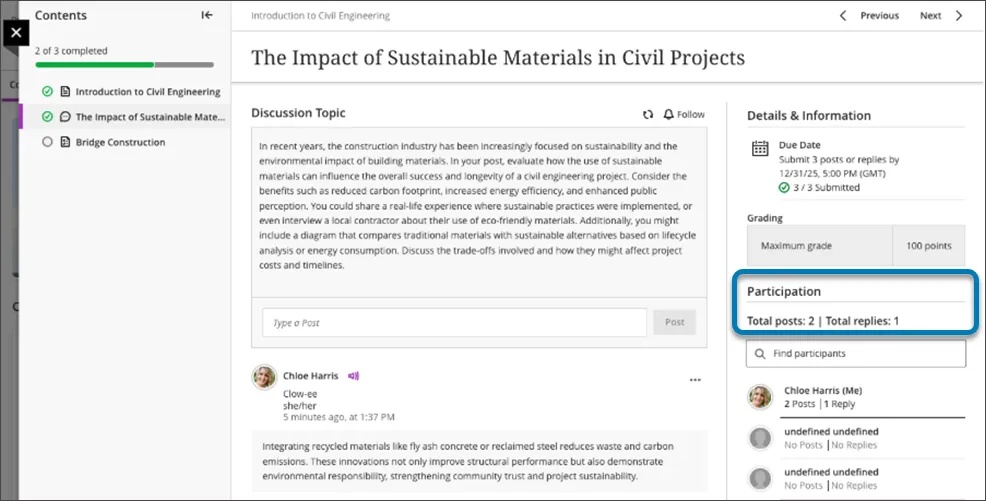
Specify participation requirements for Discussions
Instructors can now make clear participation requirements to students. The initial release adds participation requirements to the existing due date(s) for discussions. Instructors can set requirements on the number of required posts and/or replies for a student to fulfil the requirement.
The status of participation requirements is updated through to completion, giving a student a clear understanding of progress made. Participation requirements are linked to progress tracking, so that will be accurately displayed for the student to monitor. Participation requirements are optional but recommended for maximum benefit.
This update does not affect grading workflows or Gradebook structure.
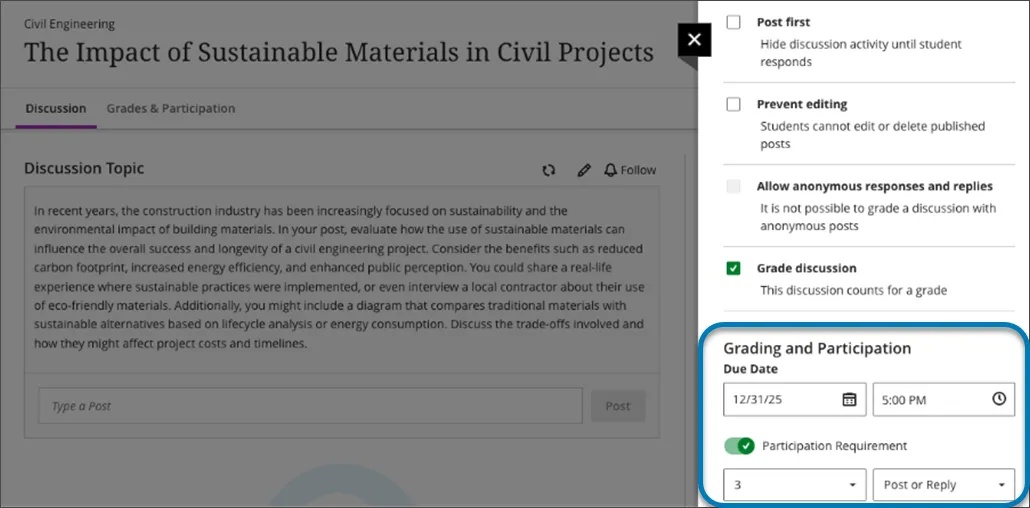
The new participation requirements in Discussions give students a clearer understanding of instructor expectations in an assigned Discussions topic. Students can monitor their progress both in the assigned Discussions topic as well as in Progress Tracking.
Learning Module Table of Contents – Instructor View
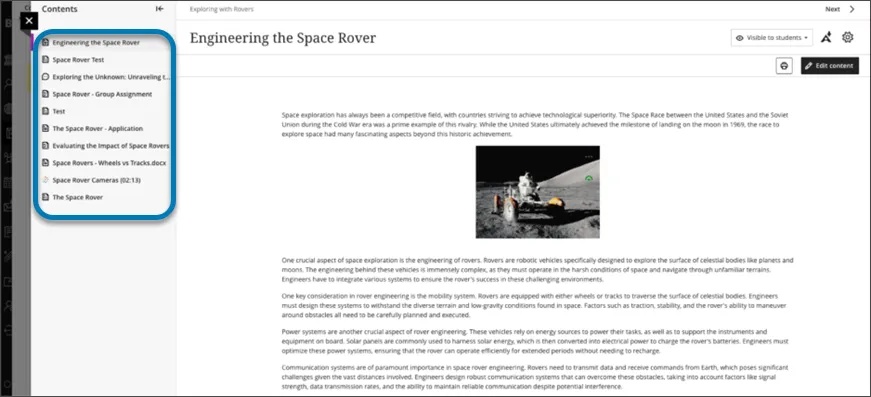
Instructors now have access to a collapsible Table of Contents panel in Learning Modules. This update mirrors the student experience and supports consistent navigation across roles. Instructors can quickly move between module items and access content that isn’t yet available to students—without switching to Student Preview or changing availability settings.
The Table of Contents panel includes all items in a module. Select Contents to open or collapse the panel. Instructors can navigate the full module structure and align course design with the student experience.