January 2026 Updates
Navigate courses and tools faster with refreshed user interface
The Blackboard interface has been refreshed. Changes include:
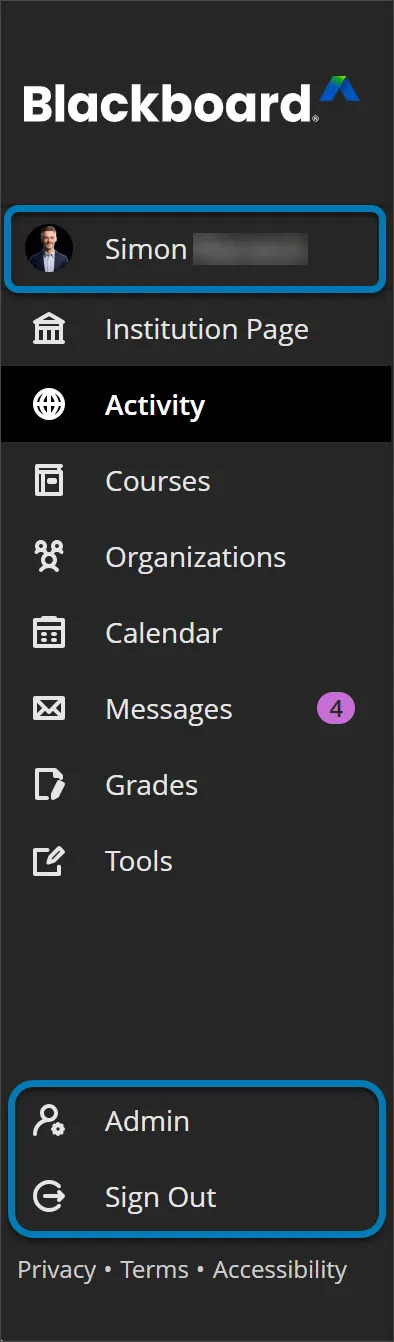
- Refreshed Base Navigation:
- User profile now appears at the top of the navigation, complete with profile image for easier customization
- Admin and Sign Out options are moved to the bottom of the panel
- Administrators can now access base navigation directly from the administrator panel
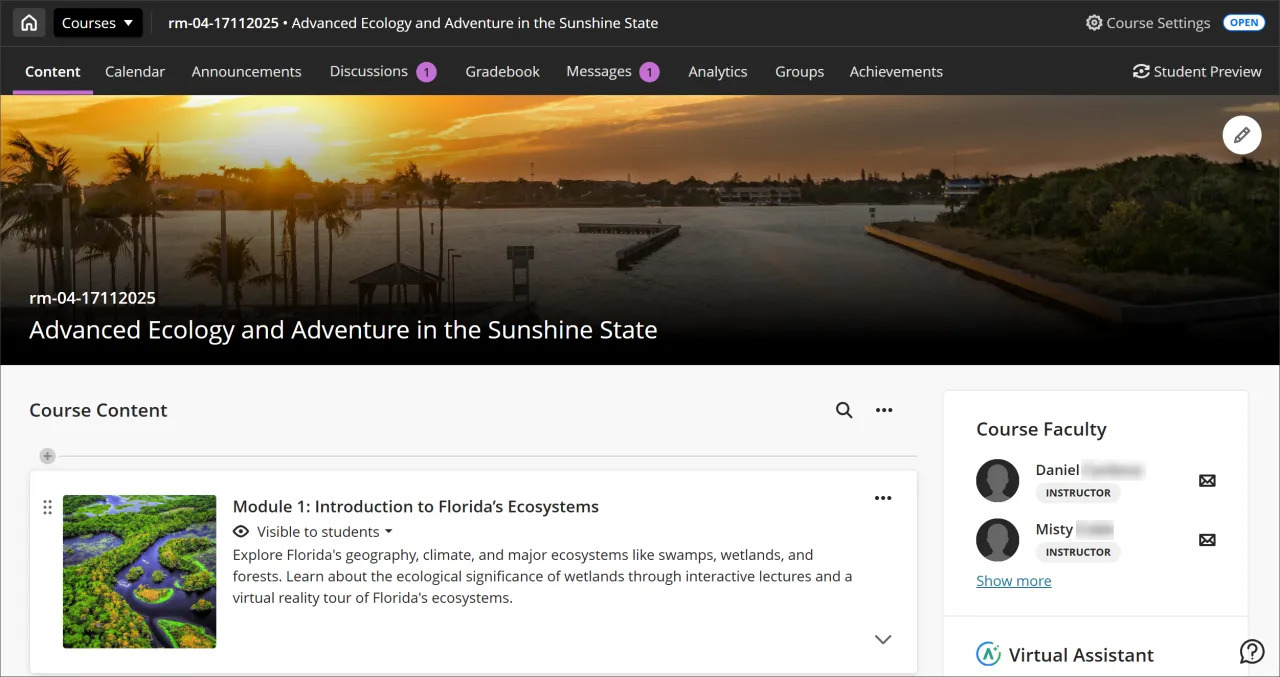
2. Course Panels Become Full-Screen Course Pages
Courses now open in full-screen mode. This update applies to top-level panels such as Course Content Homepage, Calendar, Announcements, Discussions, Gradebook, Analytics, Groups, and Achievements.
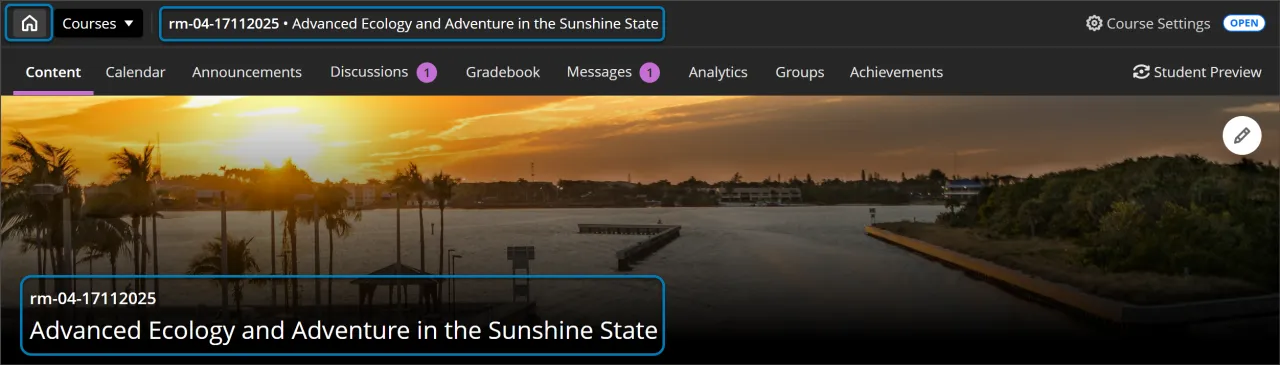
3. Home button replaces Exit
The “X” to exit a course is replaced with a Home button that returns you to the landing page. The “X” remains for lower-level panels like learning modules for now.
4. Course ID and title in the header bar
The header now displays the course ID and title for better context.
5. Full-width banner
The course banner spans the full width of the screen with the course ID and title on a darker background.
6. Branded course menu
The course menu reflects the university’s branding, using colors and styles from theme settings. The menu is positioned higher on the screen for better use of space.
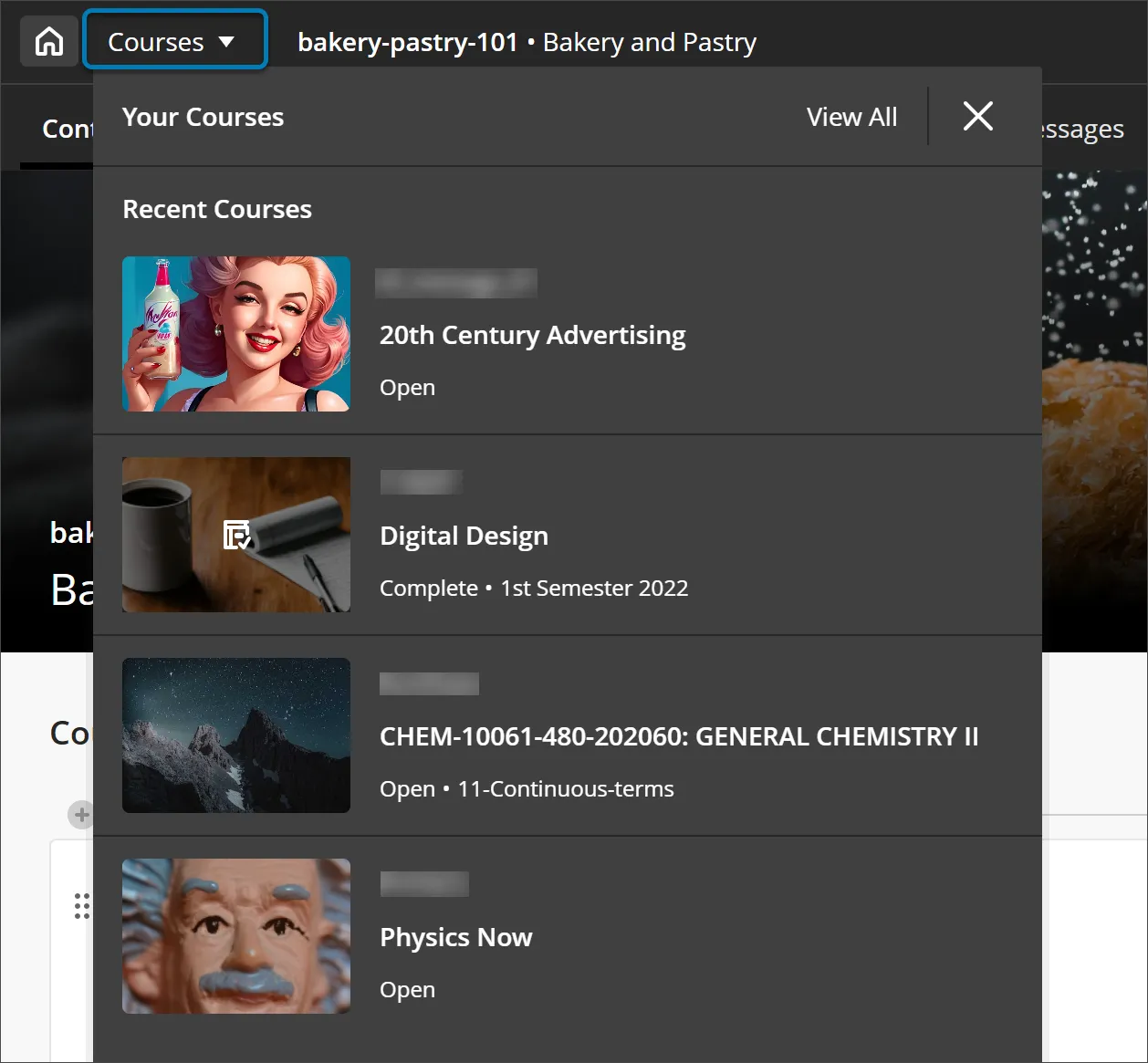
7. Course Switcher
Users can quickly jump between their four most recent courses or go to the full Courses page.
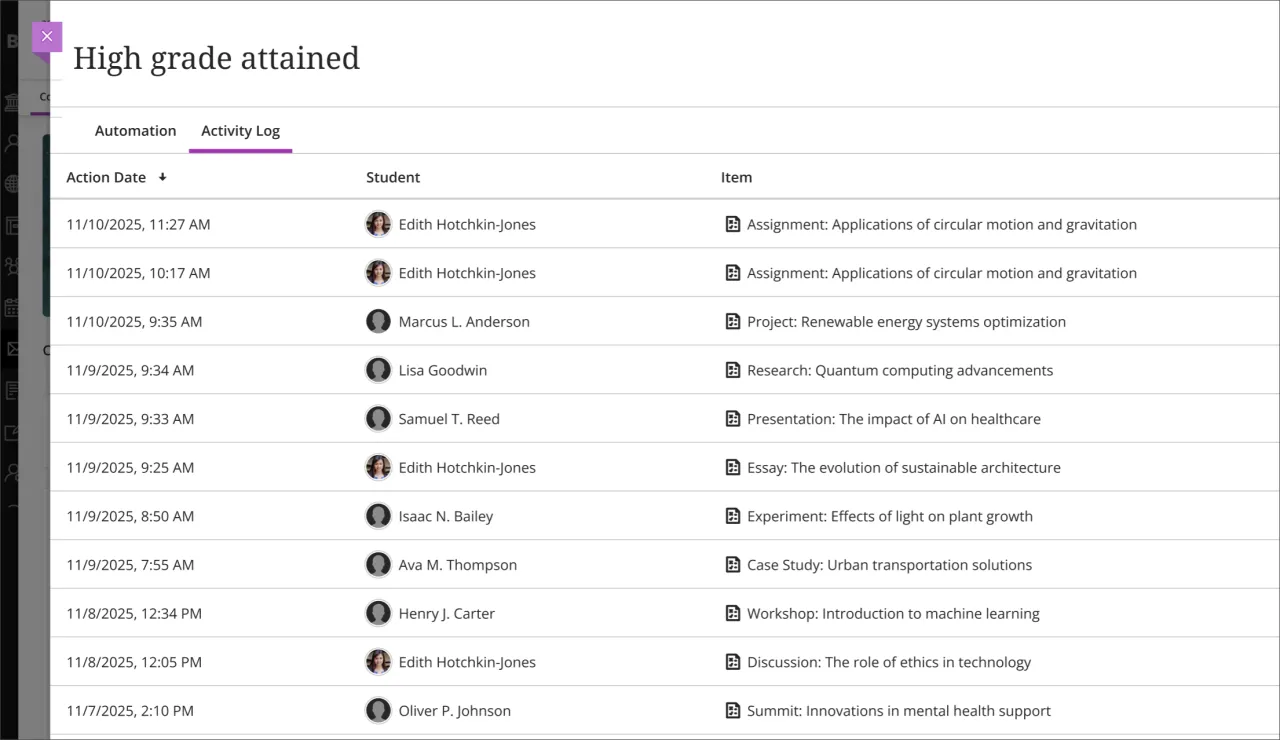
View activity log for Automations
Instructors can now access an activity log for each automation in their courses. The activity log lists the action date and time the automation was triggered and identifies student and item that triggered it. This feature gives all instructors in the course visibility into when automations occur and which students receive automated messages.
Usability improvements for Document Block Layout
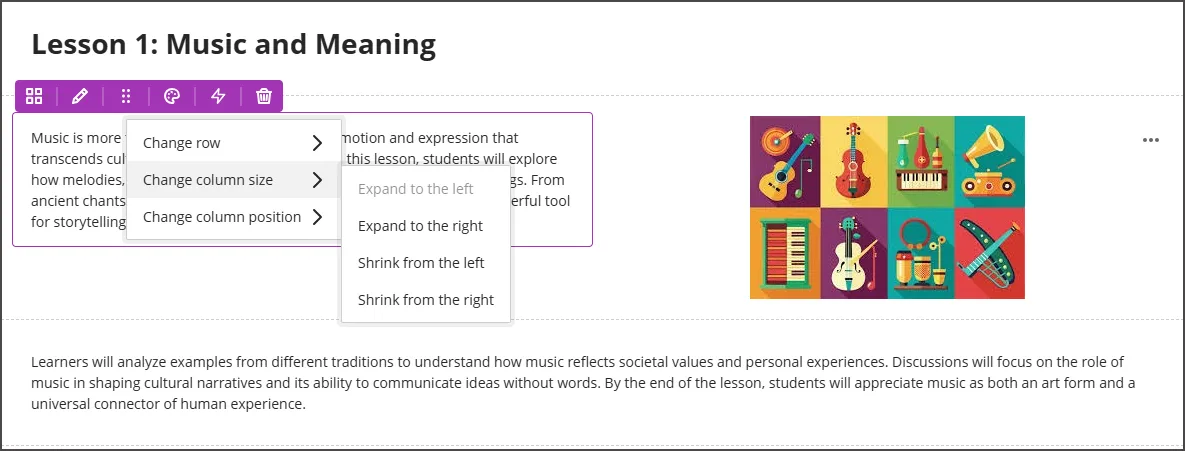
Options are organised by type of change (row, size, and position).
Selecting the edit icon for a block prompts a menu with three options: Change row, Change [block/column] size, and Change [block/column] position. Each of these options have a sub-menu, with the related actions.
- Change row
- Move to row above
- Move to row below
- New row above
- Change [block/column] size
- Expand to the left
- Expand to the right
- Shrink from the left
- Shrink from the right
- Change [block/column] position
- Move to the left
- Move to the right
Expanded question options for true/false
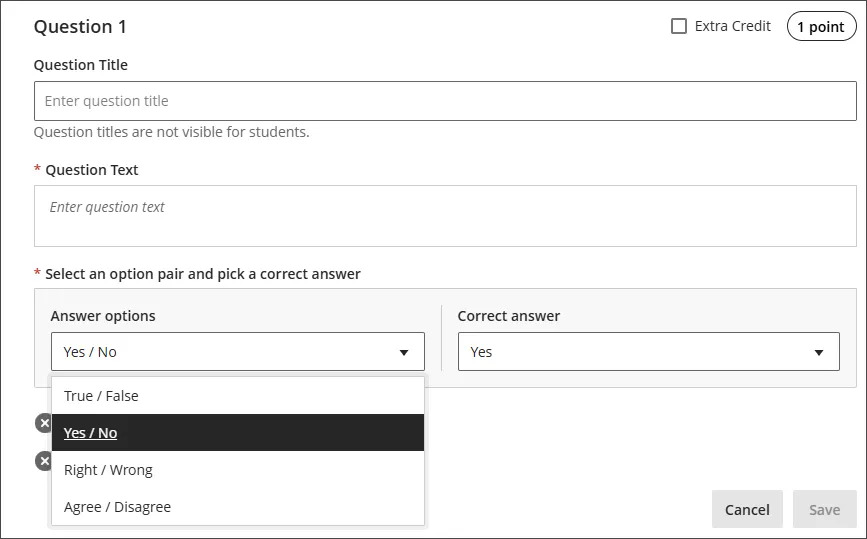
We expanded the display options for true/false questions to include:
- True/False
- Yes/No
- Right/Wrong
- Agree/Disagree
These additional answer options display when:
- Instructors create or edit this question type when building a test or in a question bank
- Students answer the question
- Instructors grade the question
- Students review their submission or graded question
Improved Gradebook download option
We improved the functionality of the option for whether to include or exclude hidden items in the Gradebook download. Now this option is available only if the Gradebook has hidden items.
Improved performance for large multiple choice or multiple answer tests
We’ve optimised rendering of MCQ and True/False questions, significantly improving load times for large tests. For example, a 200-question test now loads in ~5 seconds, down from ~25 seconds, which equates to an 80% improvement.
Enhanced multiple choice and multiple answer workflow
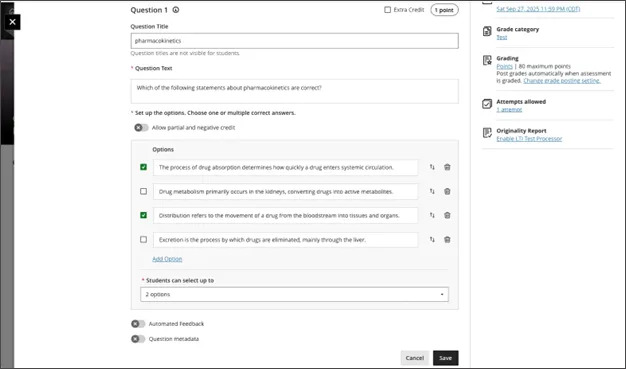
For Instructors: To reduce setup time when creating a multiple choice question, we changed the default number of answer options from three to four. Instructors can add or remove answer options.
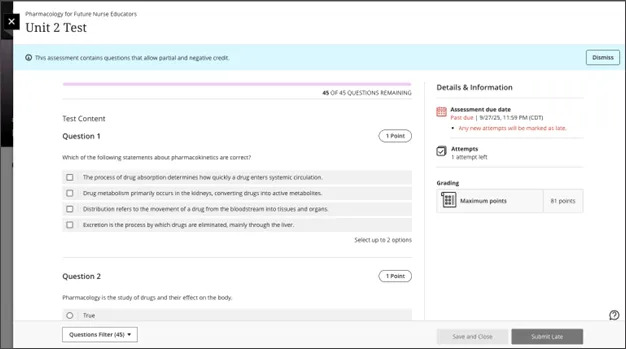
Instructors can now define the number of answer selections that a student can make for each multiple choice question. When the student takes the assessment, the system enforces the instructor’s selection limit.
For students: For questions where students can select only one answer, the selection mechanism is radio buttons. For questions where students can select more than one answer, the selection mechanism is checkboxes.
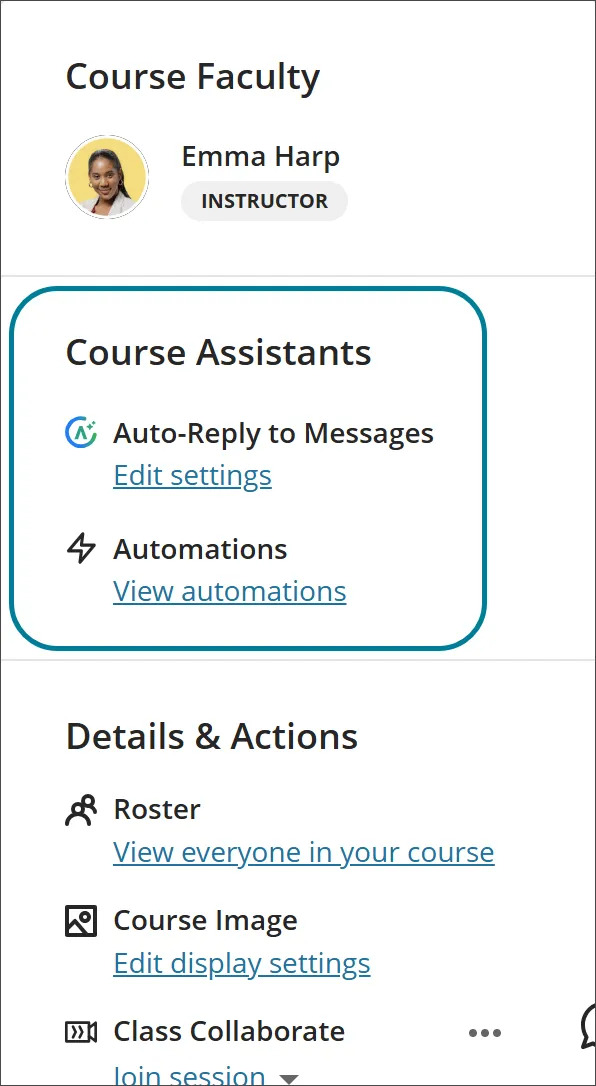
Improved Automation placement on Course Content page
The heading for the section on the Course Content page that includes automations is now Course Assistants instead of Virtual Assistant, and the AVA logo has been removed. This change clarifies that automations do not require an AVA license and helps prevent confusion for administrators and instructors.