March 2026 Updates
Instructional Design: Generate Knowledge Checks with AI
We expanded AI‑assisted authoring to support generating multiple choice Knowledge Checks within Documents. This enhancement allows instructors to create just‑in‑time formative assessments using AI‑generated questions based on the content of their Document and any selected course materials.
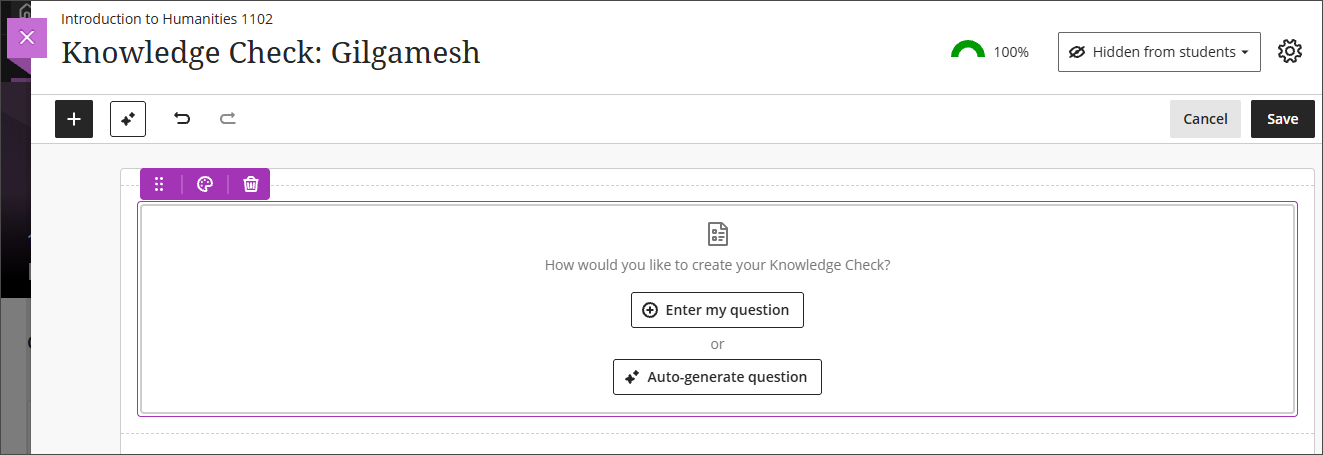
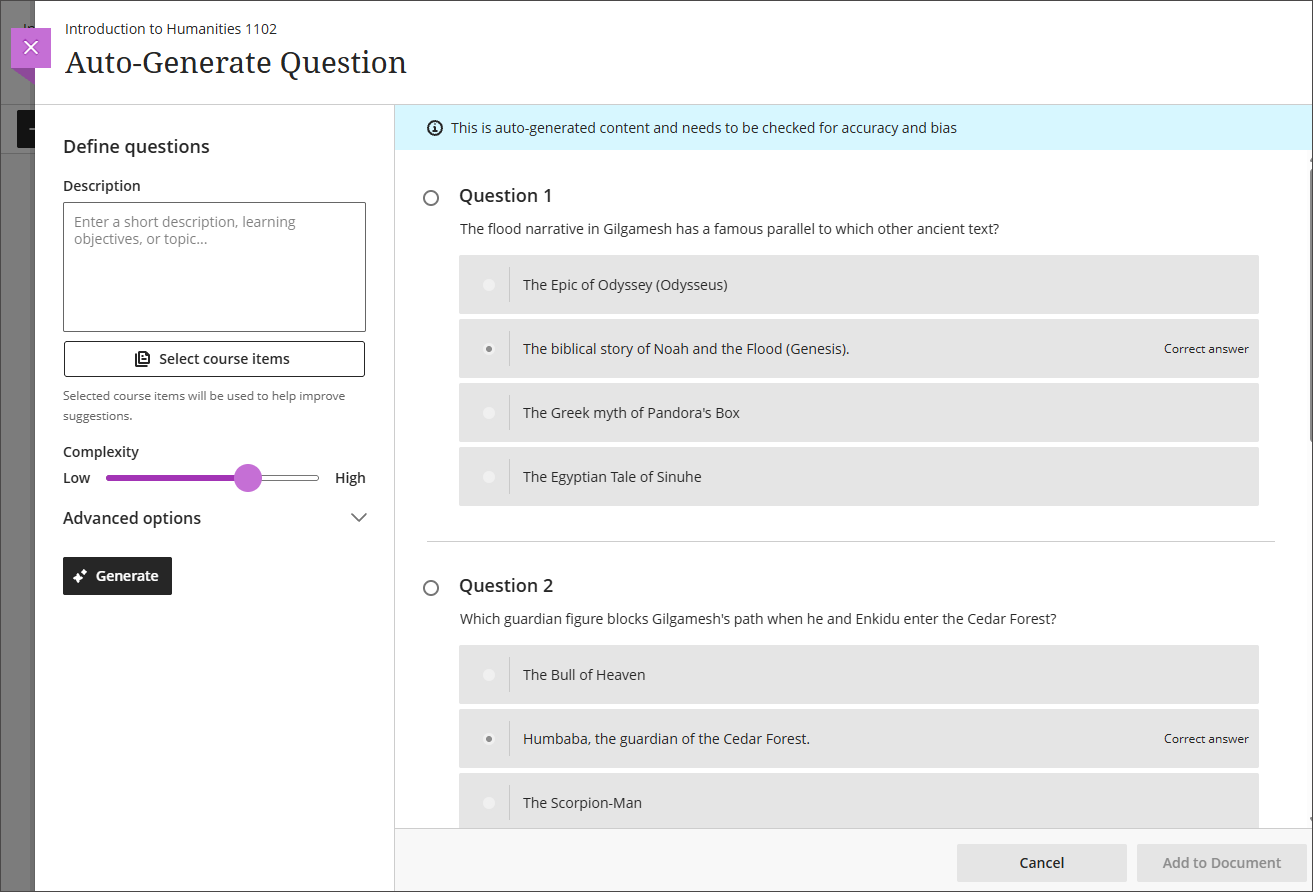
When inserting a Knowledge Check, instructors are now presented with two options: Enter my question or Auto generate question. Selecting Auto-generate question opens the Auto-Generate Question panel, which adapts the existing Question panel used in tests and question banks.
Communication and Collaboration: Enhanced threading experience in Course Messages
When users send new messages, the system now attributes the message to an existing conversation. If no conversation exists, the system creates one. Any future messages between those users return to that same conversation. The option to block replies is removed because it conflicts with the simplified threading experience. Additionally, the rich text editor (RTE) and Send button now stay onscreen on smaller devices to improve usability.
Add a second participation requirement and due date in Discussions
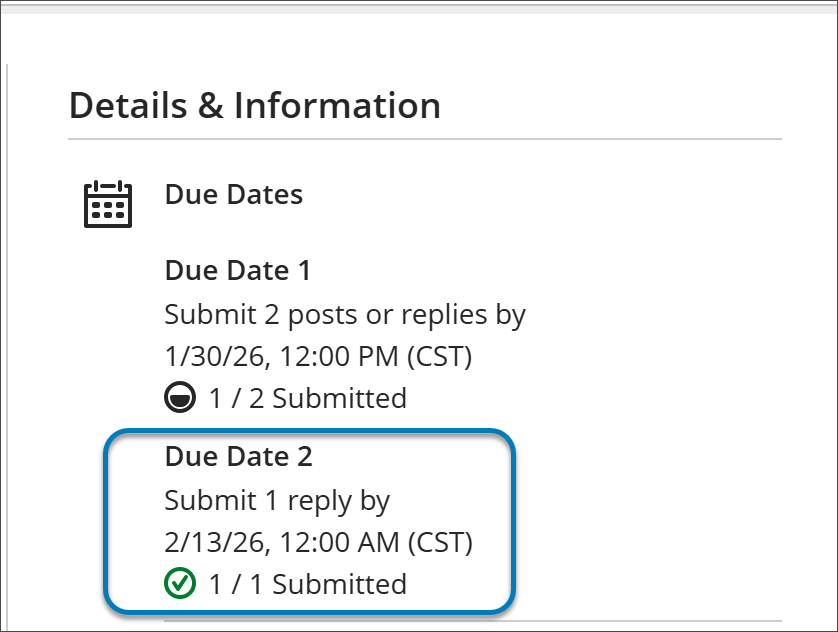
Instructors can now add a second due date with participation requirements for Discussions, giving instructors clearer ways to set expectations for discussion activity. Students get transparent guidance for discussion expectations and progress indicators for their participation. Instructors can set how many posts and replies that students must complete across two due dates.
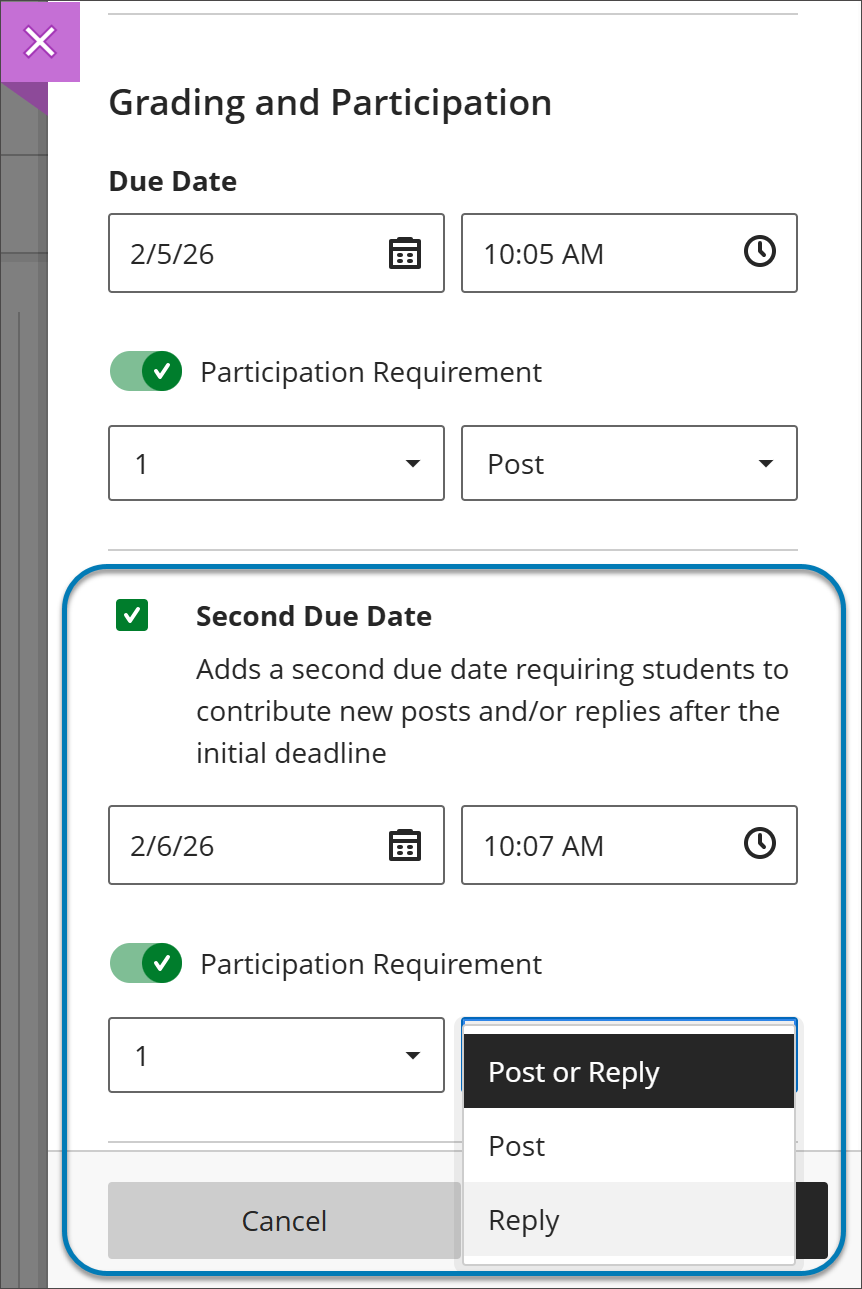
When students open a discussion, they find two clear participation requirements with separate due dates. As they post and reply, progress indicators update in real time.
Students can complete requirements in any order, but contributions after a due date won’t count toward that requirement. Once all requirements are met, the discussion is marked complete and Progress Tracking updates.
Assignments & Tests: Question Title field relocated
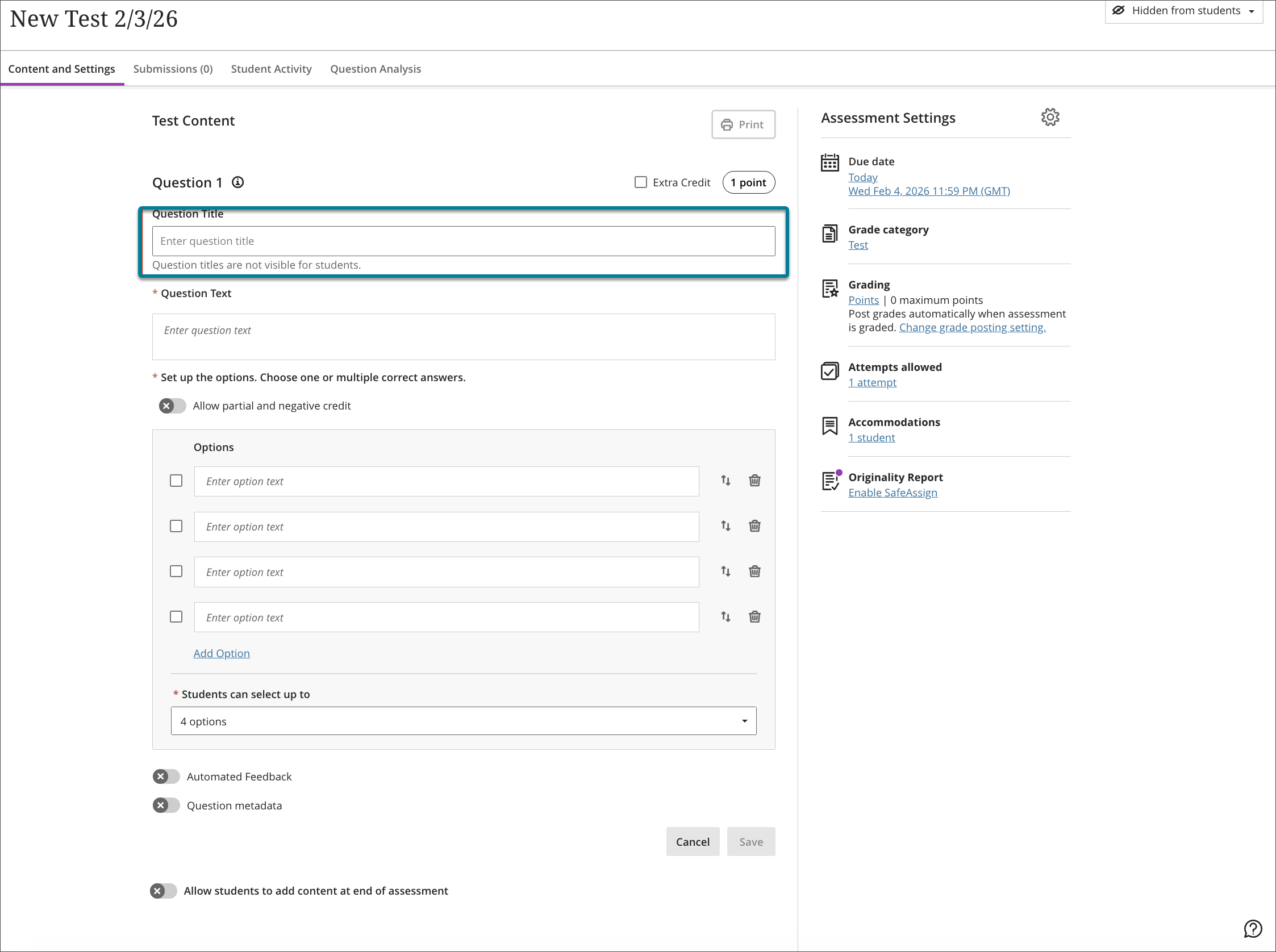
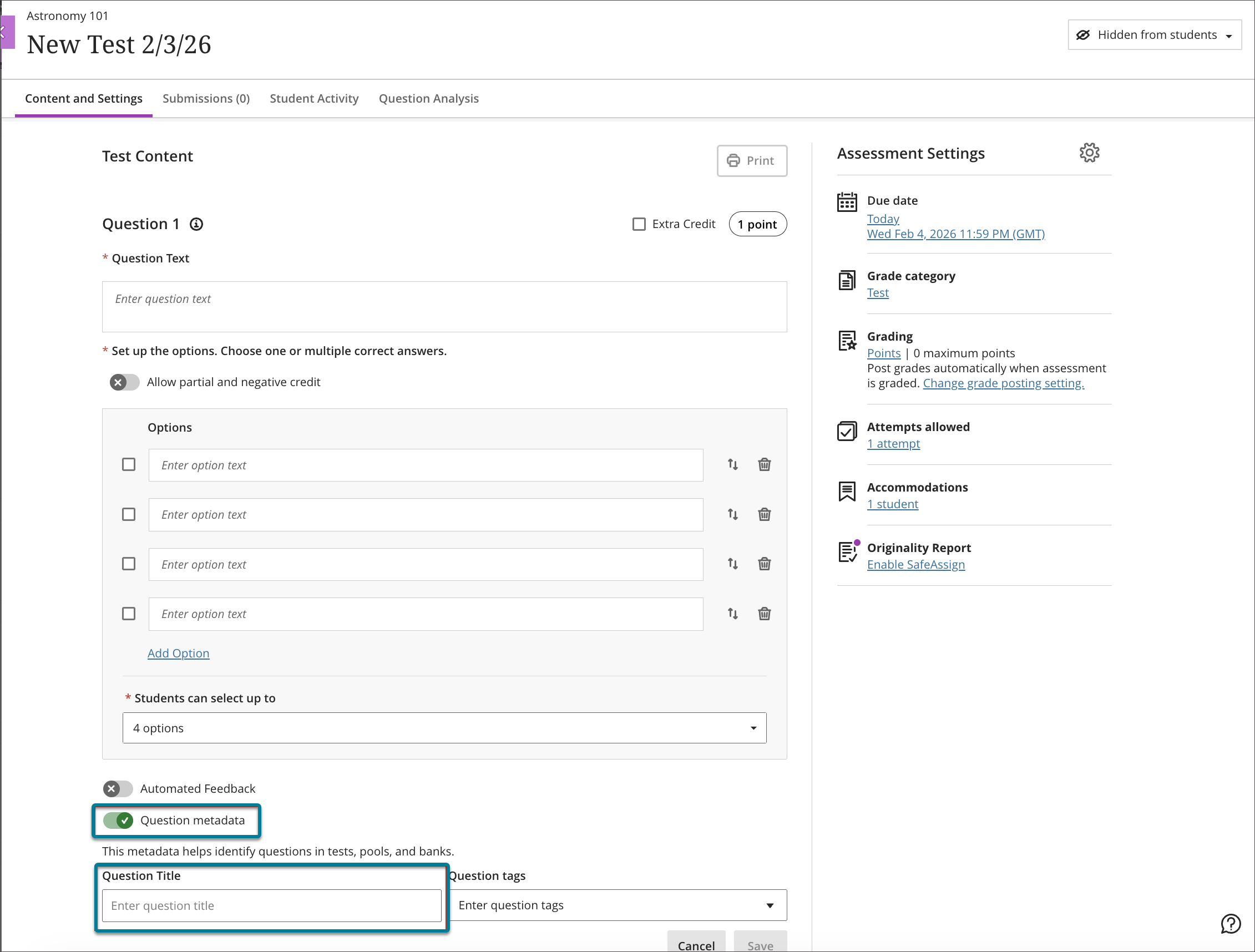
We moved the Question Title field from the beginning of the question authoring workflow to the bottom, underneath the Question metadata field. Moving this field ensures that titles remain an optional metadata element and reduces cognitive load during question creation.
Partial credit limits removed for Multiple Choice and Multiple Answer
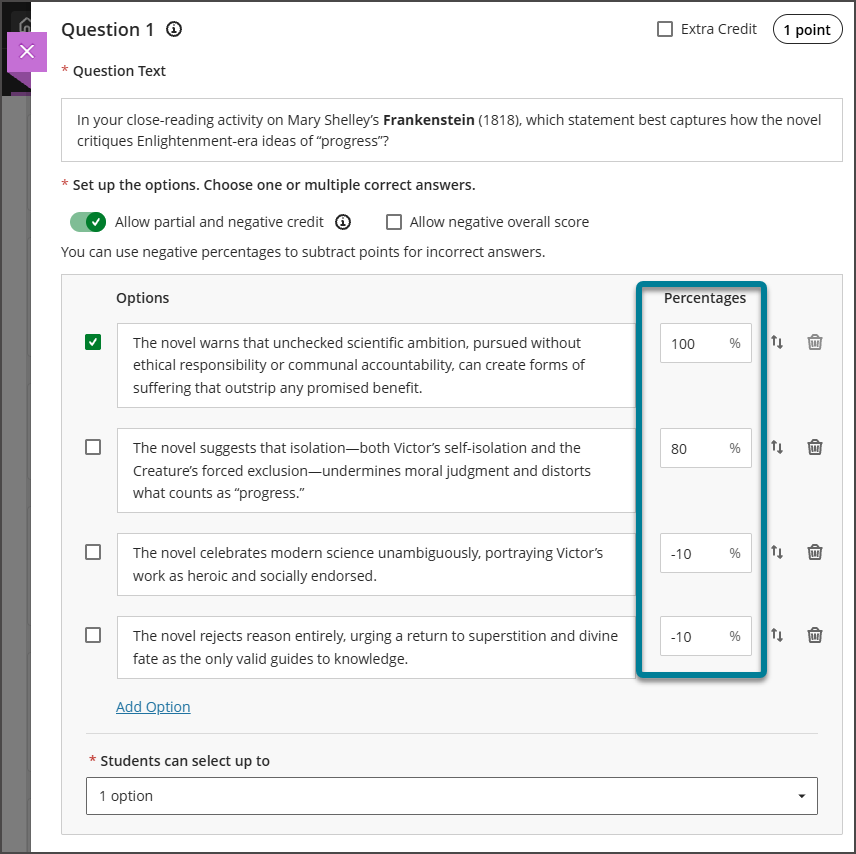
We updated the partial credit system for Multiple Choice and Multiple Answer questions to allow instructors to assign credit values without the requirement that all designated values sum to 100%.
The system now allows instructors to enter any partial credit value for each option within a range of –100% to +100%. Validation continues to warn instructors if total values exceed 100%, but it no longer blocks question setup. Instructors may now also enter positive credit values for options that are not marked as the correct answer. The total partial credit value for correct answers should be at least 100%, and it may exceed 100%. Negative marking continues to operate when enabled. Instructors can adjust credit values during regrading as well.
Gradebook: Anonymous grading by question
Instructors can now grade anonymously ‘by question’ in addition to grading anonymously ‘by student’. When grading anonymous test submissions in Question View, the interface replaces the student name, avatar, and ID with an anonymous identifier and a blank avatar.
Increased file size limit to 25 MB for assignments and tests
We increased the maximum supported SafeAssign file size from 10 MB to 25 MB. The increased file size applies to assignments and tests.