Video Assignment Submission – A Guide for Students
⚡ Quick Steps
- 🔑 Log into Blackboard and open your Video Assignment.
- ➕ In the submission toolbar, click the plus icon → Content Market.
- 🎞 Select Panopto Recordings, then record, upload, or choose a video.
- 📌 Click Insert, then Submit — look for the confirmation message.
📖 Introduction
🎓 This guide will help you complete a video assignment in Blackboard using Panopto.
🎥 You can create your video using any device or application — Panopto accepts most common formats, with no strict limits on file size or video length. If you haven’t recorded yet, you can also use Panopto Capture to record directly in your browser. Remember: make any edits before submitting, as once your video is submitted it cannot be changed.
✅ Please check that your video plays back correctly before you submit, as you cannot replace it afterwards. ⏱️ To avoid last-minute issues, upload early so you have time to resolve any problems before the deadline.
💡 It’s easier than it looks, and this step-by-step guide will show you exactly what to do.
1️⃣ Find your assignment
- 🔐 Log into Blackboard and open the course where your instructor has set the assignment.
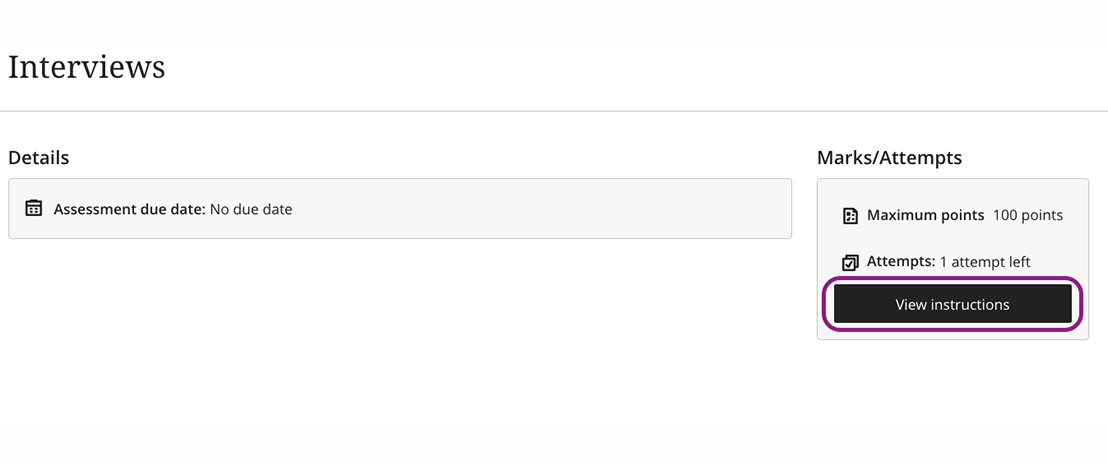
- 📂 Click the assignment link. A menu will open showing the title, details, and information about the assignment.
- 👆 Select View Instructions in the bottom right corner.
2️⃣ Go to Content Market
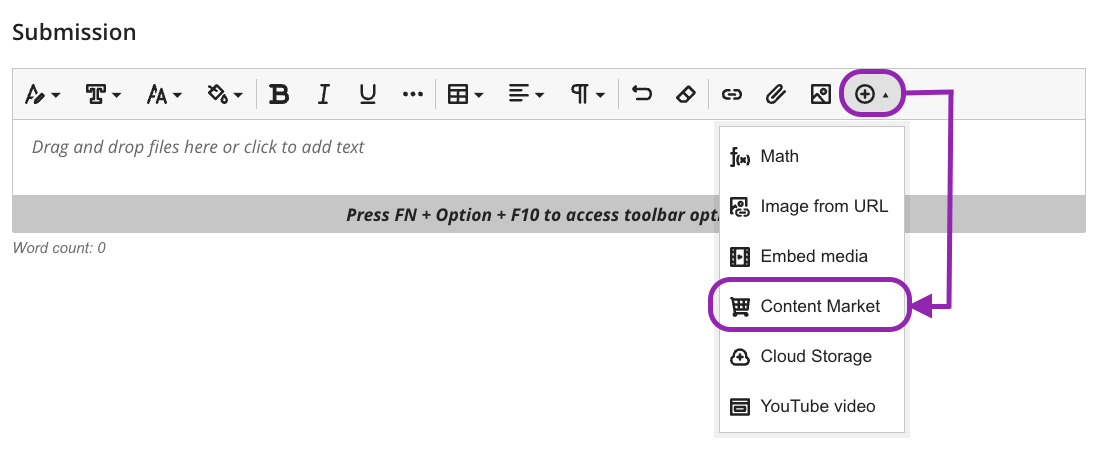
📑 From the submission toolbar, click the circled plus icon and choose Content Market from the drop-down menu.
3️⃣ Choose Panopto Recordings
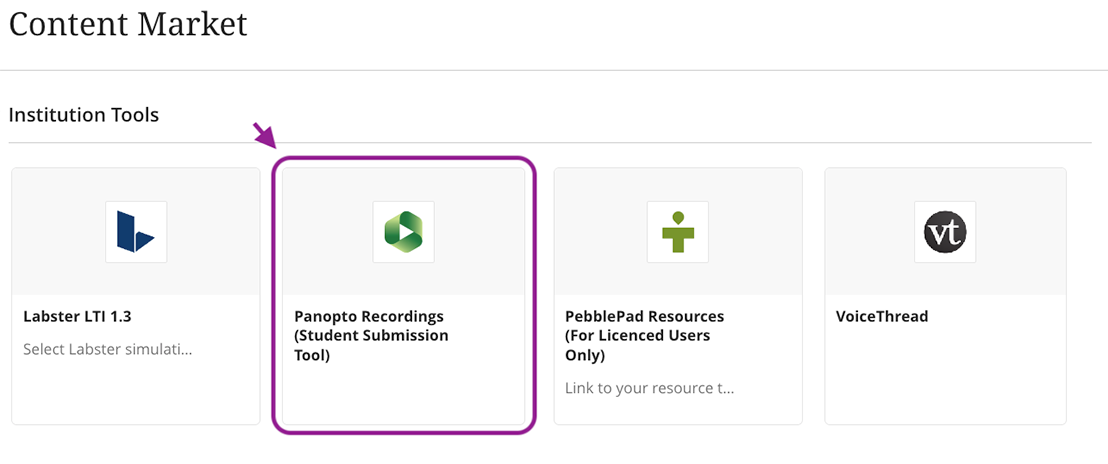
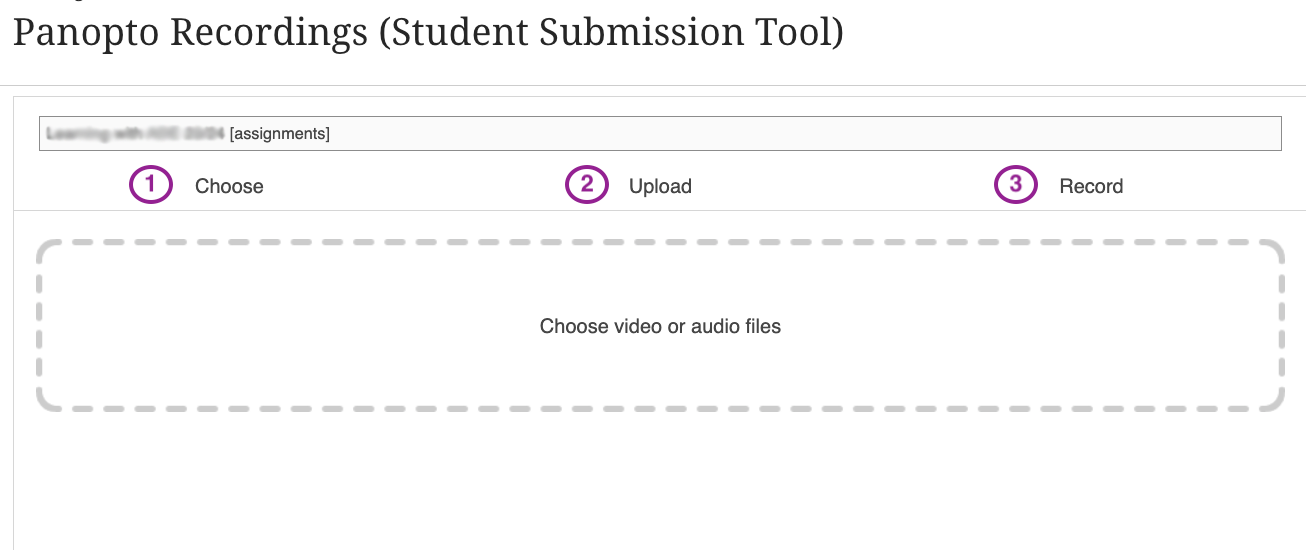
🎞 Select Panopto Recordings (Student Submission Tool) from the menu. This will open the video picker.
4️⃣ Record or upload your video
- 🎞️ Choose existing recording – pick a video you already created in Panopto.
- 📁 Upload media – upload a recording from your computer.
- 🎥 Record a new video – use Panopto Capture to record webcam, audio, and screen.
📖 How to use Panopto Capture (video + text guide)
⚠️ Important: Edit your video before you submit — after submission, no changes can be made.
✂️ How to edit your video in Panopto
5️⃣ Insert the video
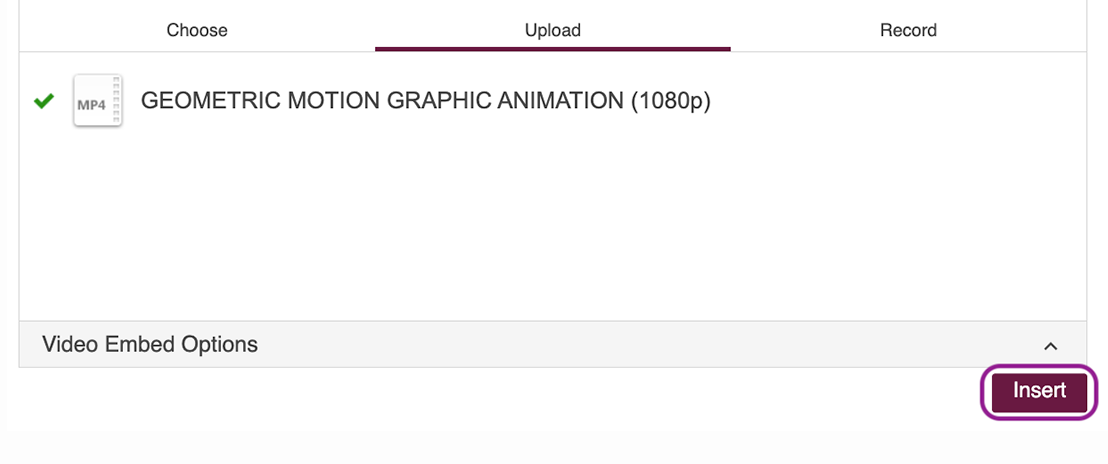
📌 Once your video is ready, click Insert.
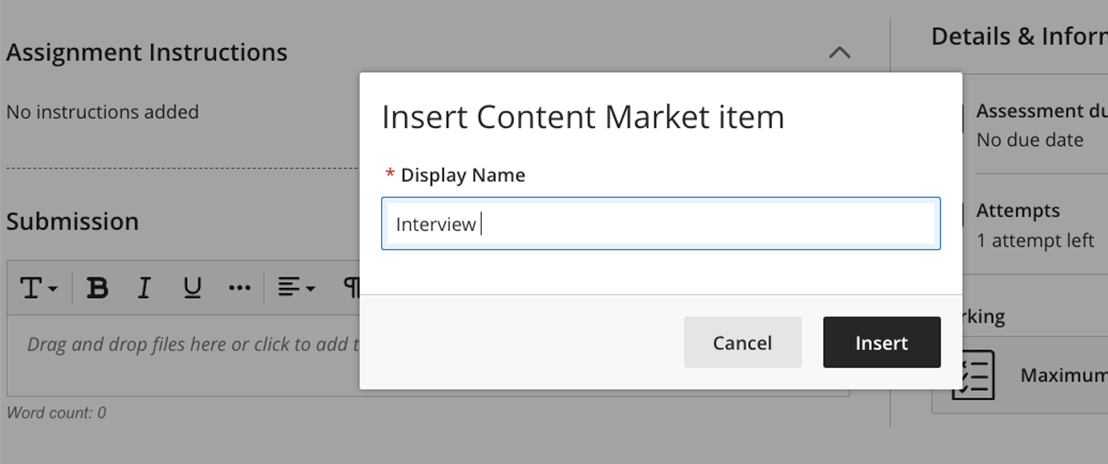
📌 You will be taken back to the Blackboard submission page, where you can choose a Display Name for your video, and then click Insert.
6️⃣ Preview and submit
👀 A preview of your video will now appear in the Assignment Preview box.
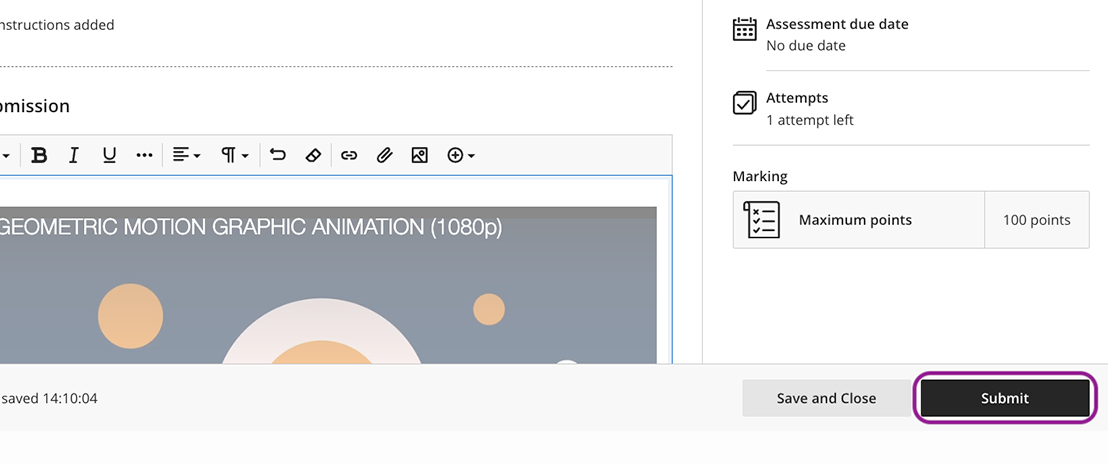
✅ Finally, click Submit at the bottom of the page. Your submission is only complete once you do this.
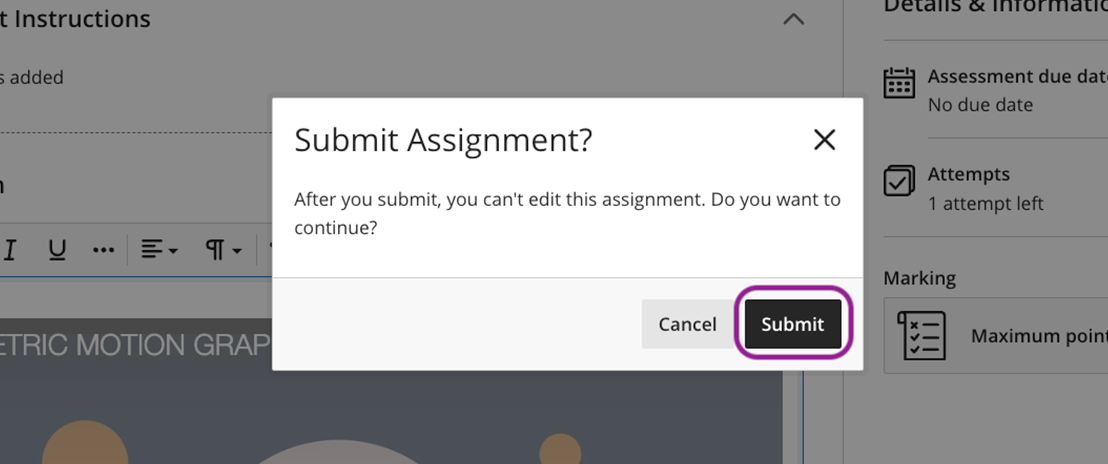
🔍 Final check
You should see a confirmation message in Blackboard and receive a submission receipt. If you don’t, go back and make sure you clicked Submit.
💬 Need help?
If you have any questions or run into issues, please Contact Us