Creating Group Sets
Creating group sets on Blackboard is easy and straightforward to do. The following guide will show you how to create group sets. These group sets can be used if you wish students to submit a group assignment and participate in discussion boards as a group, or send messages directly to your seminar groups or assigned groups.
On the top row of your module site, select the tab called “Groups”.

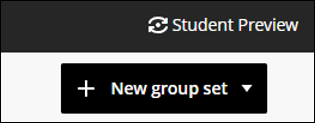
This will open the “Group” panel, and in the top right-hand corner, you will see the button “New Group Set”. Clicking on this will then open a drop-down menu, which allows users to choose how they wish to set up their groups
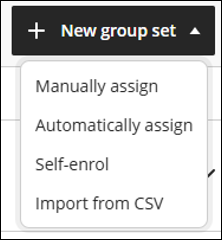
Manually Assign: Instructors can manually create the group set, assigning students to the correct groups.
Automatically Assign: Blackboard will automatically assign all students to the groups it automatically creates. The instructor can choose how many members should be in each group for it to automatically assign the correct number of students to each group.
Self-Enrol: Students can enrol themselves on a set group. Instructors can control from what date/time period students can begin to enrol themselves, allow students to change groups during the enrolment period, as well as hide members who have been enrolled and also restrict the group size.
Import from CSV: Instructors can import a group set via a CSV file. You can get this file template “Import Group Set” and select “Download Group Set Template”.
For this guide, we will create a group set manually and assign students to their groups.
When you select “Manually assign”, this will open the group panel. On the top row, you have the option to start creating your groups.
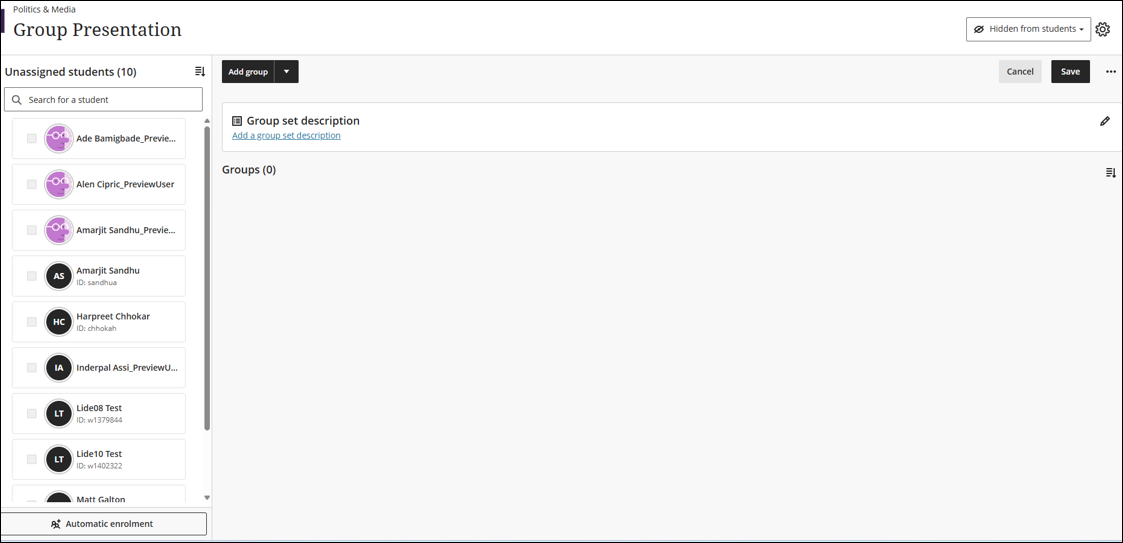
Select “Add Group”; this will open a drop-down menu where you can create individual groups, or you can create multiple groups in one go.
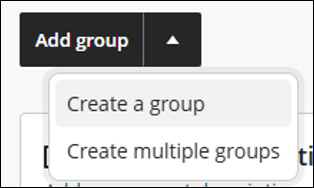
Selecting “Create a group” will open a box where you can provide the group a name, a description, and start adding members directly into the group
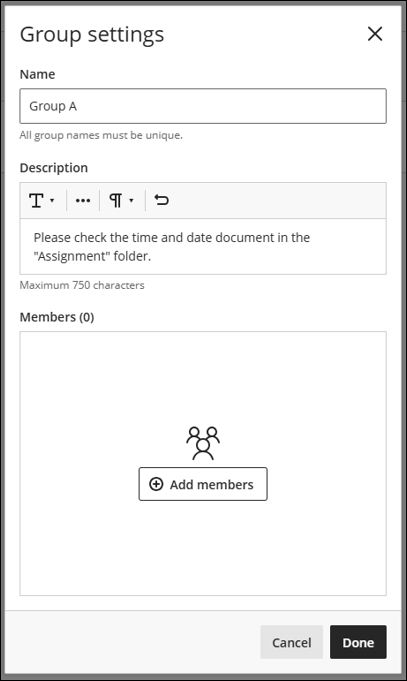
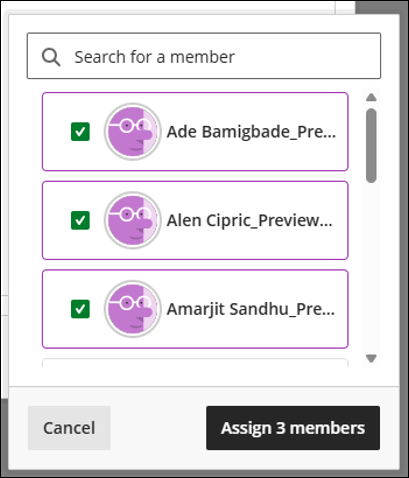
By selecting “Add members”, you can directly add the students to the group. Select “Assign x members” once you have selected the student, and then click “Done”.
The group has now been created, and students have been assigned to the group. In the group column, you can add more students by selecting “Add members”, send messages, delete the group, adjust the settings of the group (i.e. name, description, etc.) and enter the group space.

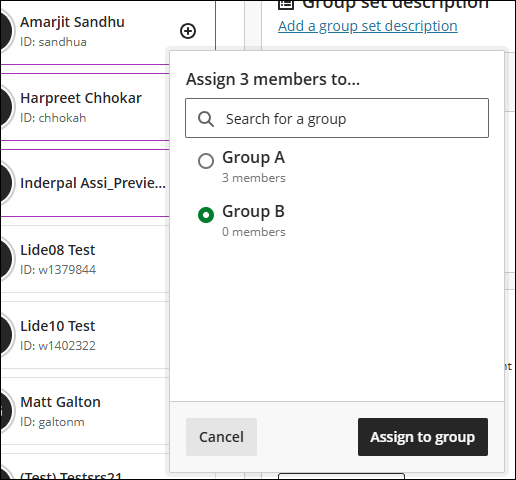
You can also create groups by instantly selecting the student’s name or multiple students, which are visible on the left-hand side under the section “Unassigned students”, and clicking on the “+” next to one of the students.
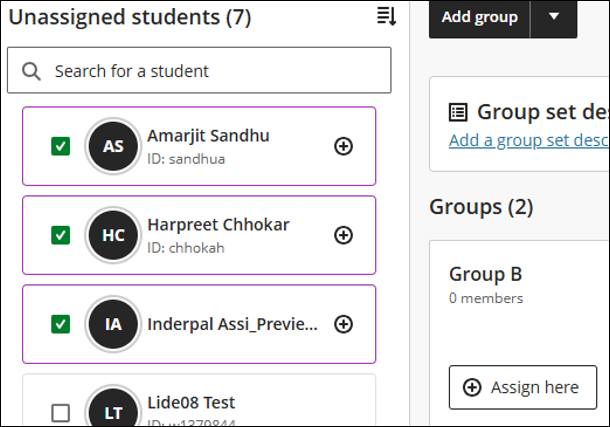
You can add them directly to a made group. Select the group and then select “Assign to group”.
Once the groups have been created, you can click on “Save” and your group set will be created.