Submitting A Blackboard Assignment
You can access Blackboard assignment link in several ways, via the Activity Stream, the Calendar or the Course Content page.
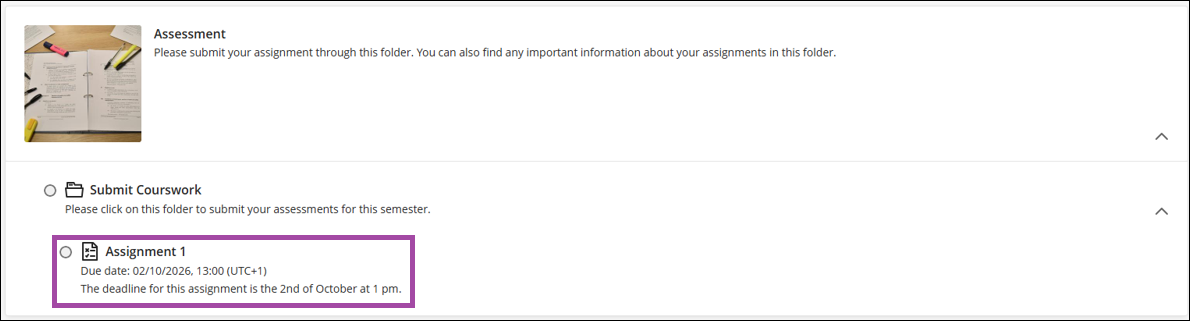
In the Course Content page, It is usually found under Assessment folder and then Submit Coursework folder as below. (If you are unable to find the link, please contact your tutor). Find the assignment link and click on it.
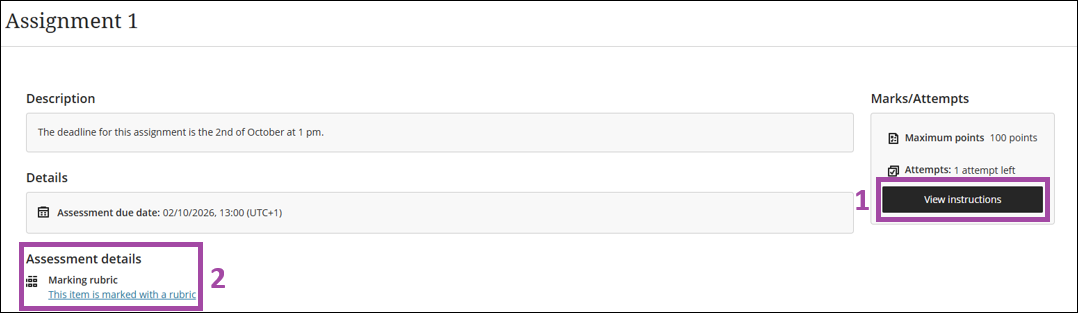
This will open the Assessment panel. To submit your assignment, select “View Instructions” (1). You can also view a rubric if your instructor has attached a rubric under “Assessment Details” (2).
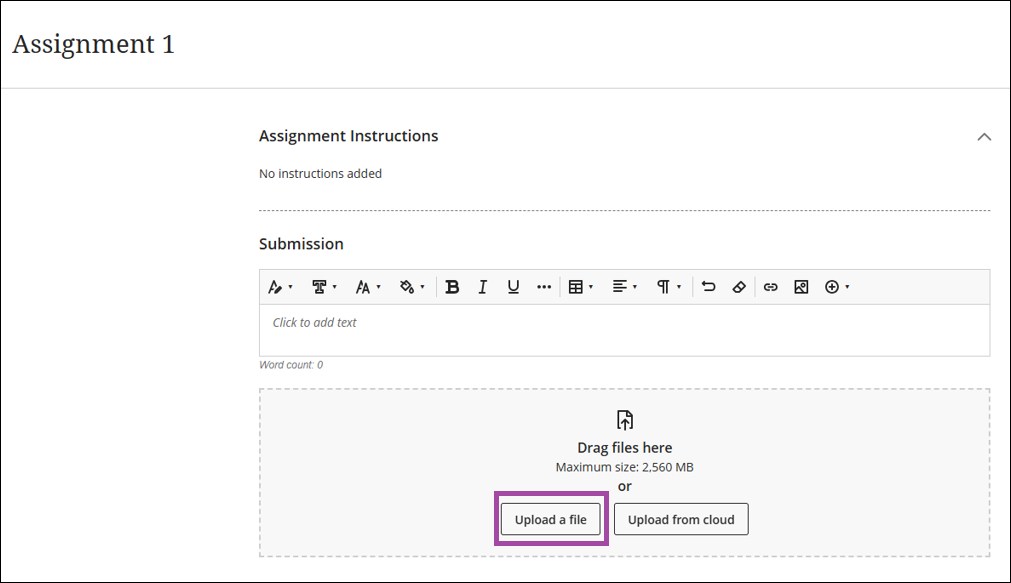
This will open the submission panel. To attach a file, select “Upload a File”. You can then choose and upload a file. We recommend that, for written assessments, the file types be either Microsoft Word or PDF. Do not submit Pages.
To upload videos or podcasts, click on this link
You can submit multiple documents and/or media file types. Select “Upload a file” again to do this.
Please be patient when submitting documents before submitting.
All uploaded submissions will be displayed under “drag file here”. You can view your submission by clicking on the downward arrow. You can delete your submission by selecting the “bin” icon, or you can download the submission by selecting the three dots.
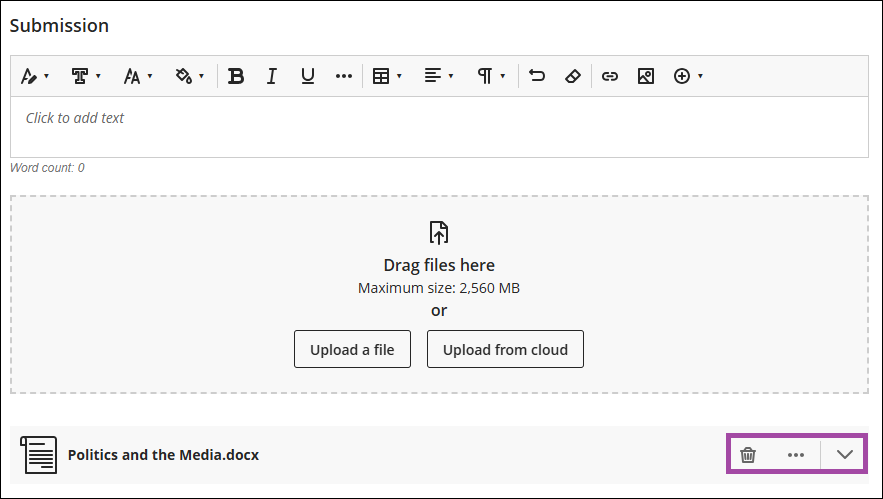
To make a submission, select “submit” in the bottom right-hand corner. You can also “Save and Close” your current attempt. This will save as a draft and will not be considered a submission.

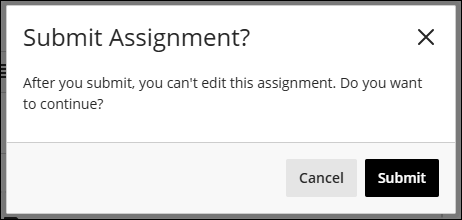
A prompt will open confirming a submission; this is in case you choose not to submit your current attempt. After submitting a submission receipt will display which you can download as evidence of submission. You will also receive an email confirming the submission.
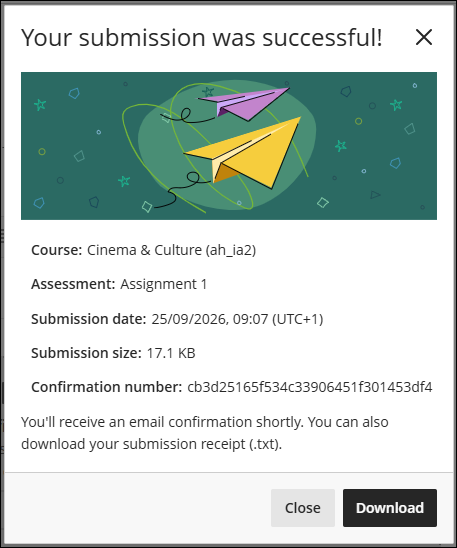
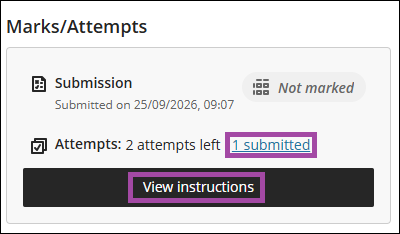
After submitting, if you need to double-check that your submission has gone through, you can select “1 submitted”; this will show your current submission. You can also view any previous attempts as well.
To make another submission, select “View Instructions” and follow the same steps as above.